
This guide details the steps to be carried out to enable the integration of your Probance One project with your Meta Business account and the information that must be transmitted to Probance for the setup of the connector.
You can also follow this video tutorial:
1. Creating a Probance One App
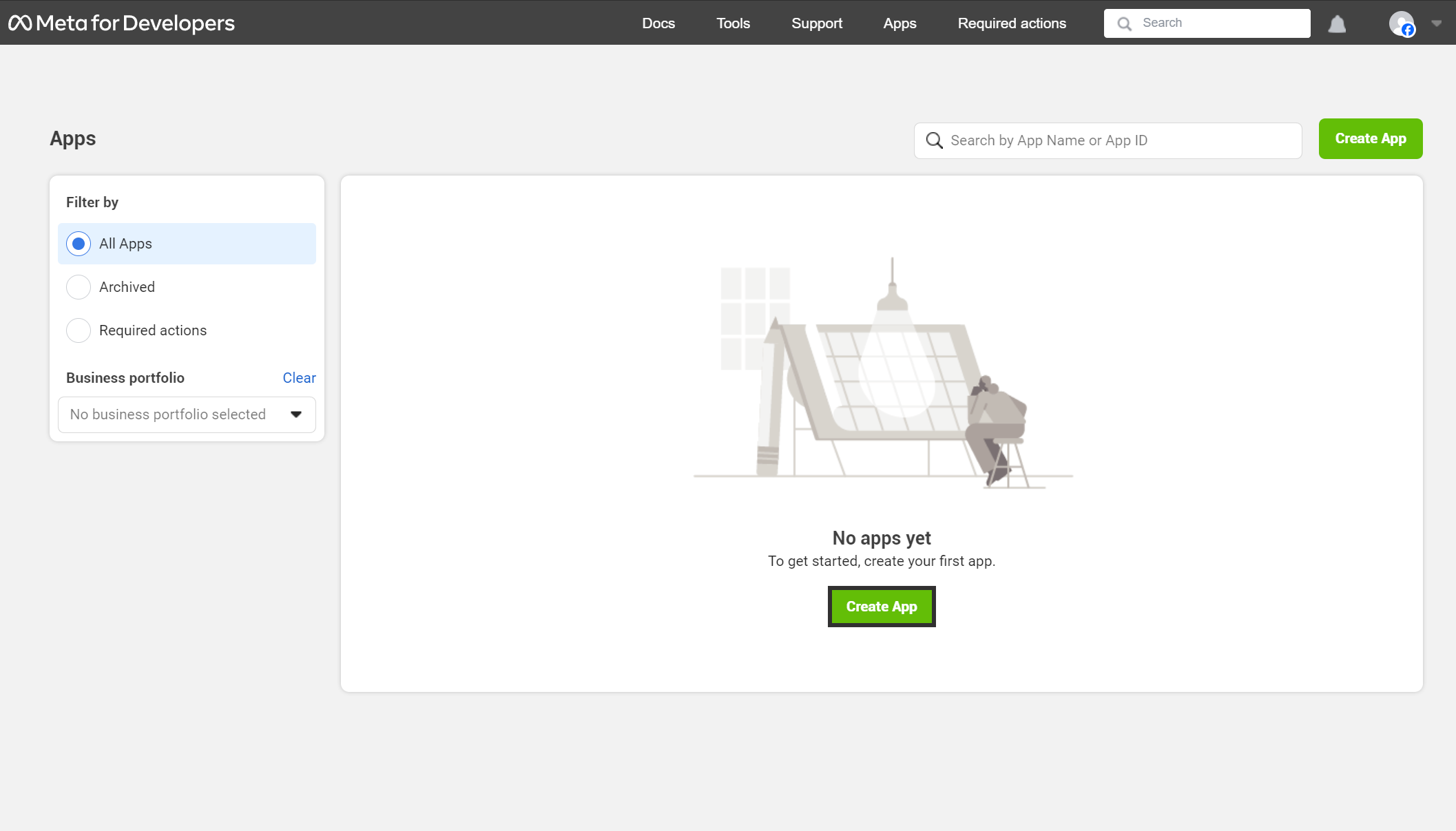
- Log in to Meta for developers with your Business account, go to the Apps menu, and click Create an App.
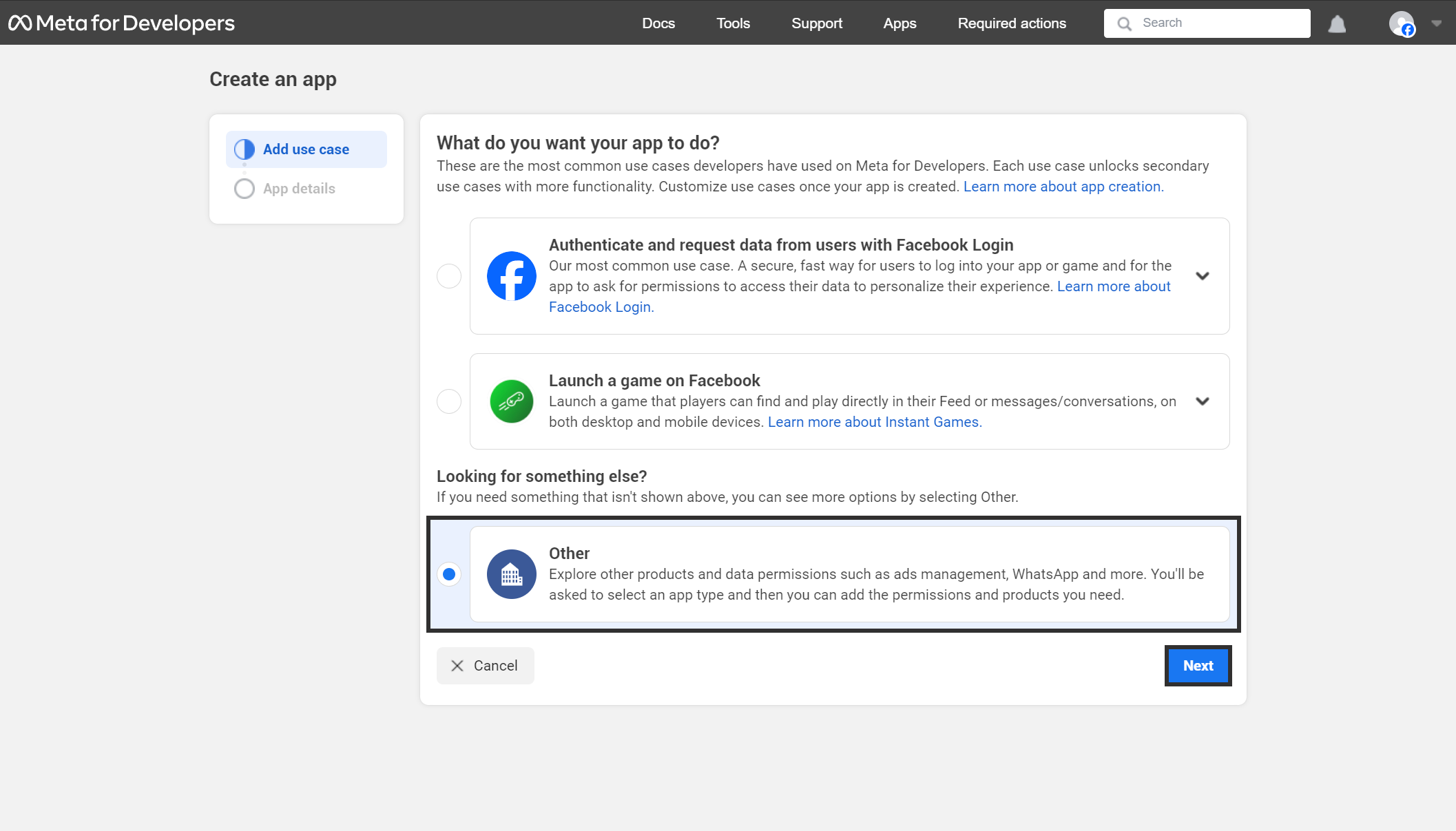
- Select the Other option and click Next.
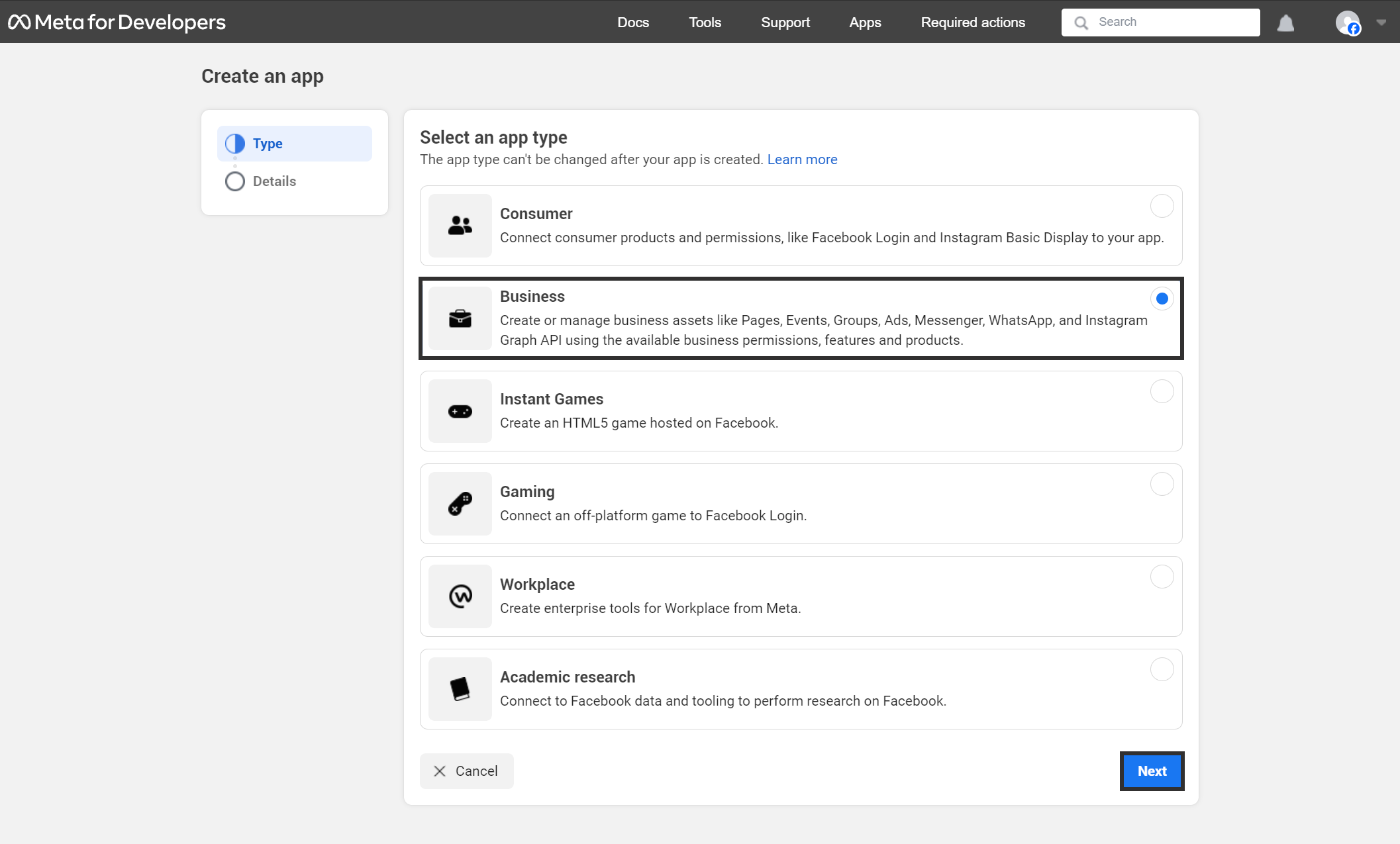
- Select the Business option and click Next.
- Fill out the form with the following information:
- App Name: probance_one
- App Contact Email: we recommend entering the email address of the person responsible for Probance in your team.
- Business Account: Select your Business account.
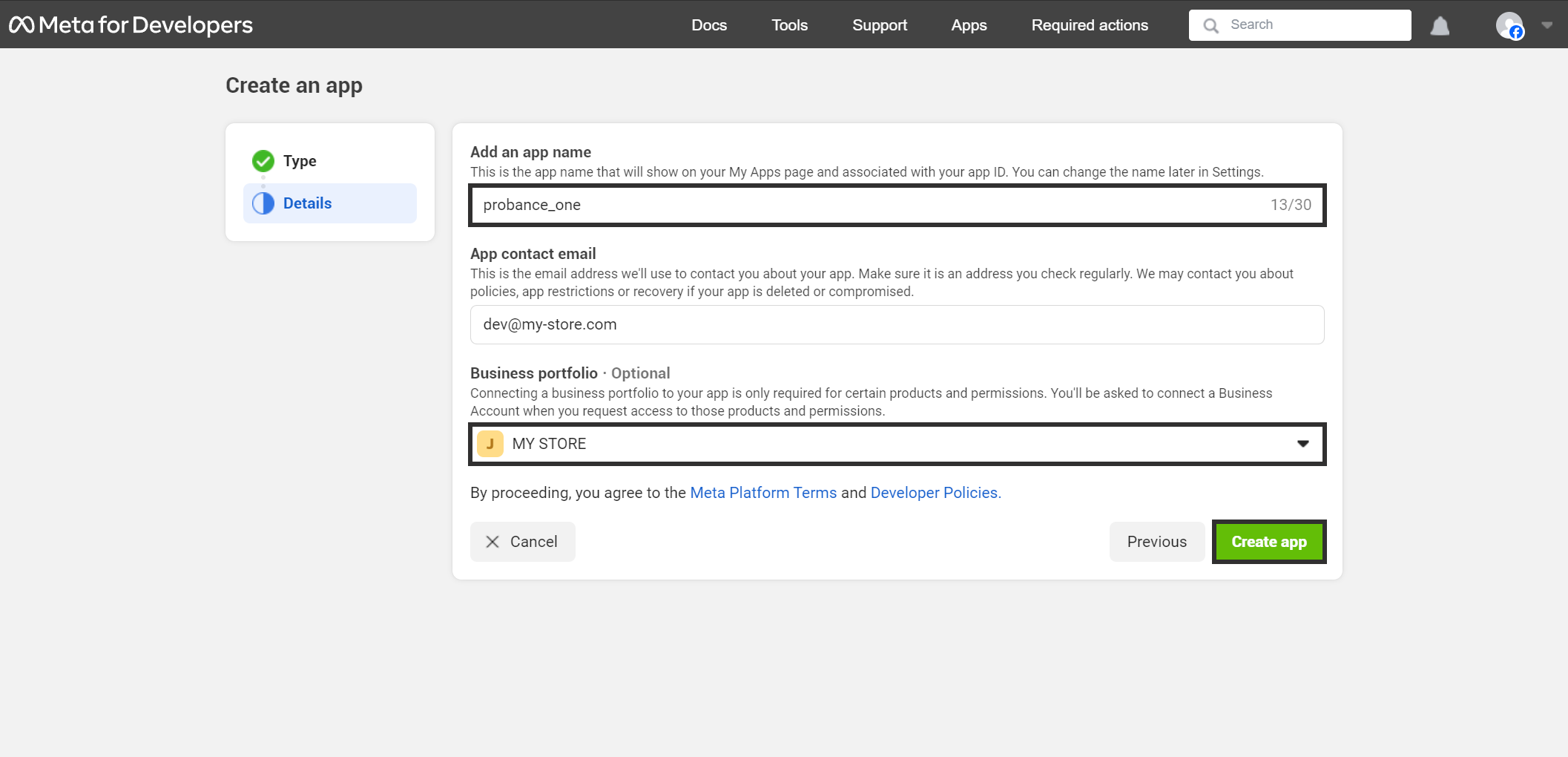
- Then click Create an App to confirm. Facebook will ask you to enter your password to confirm, and you will automatically be redirected to the details of your new app.
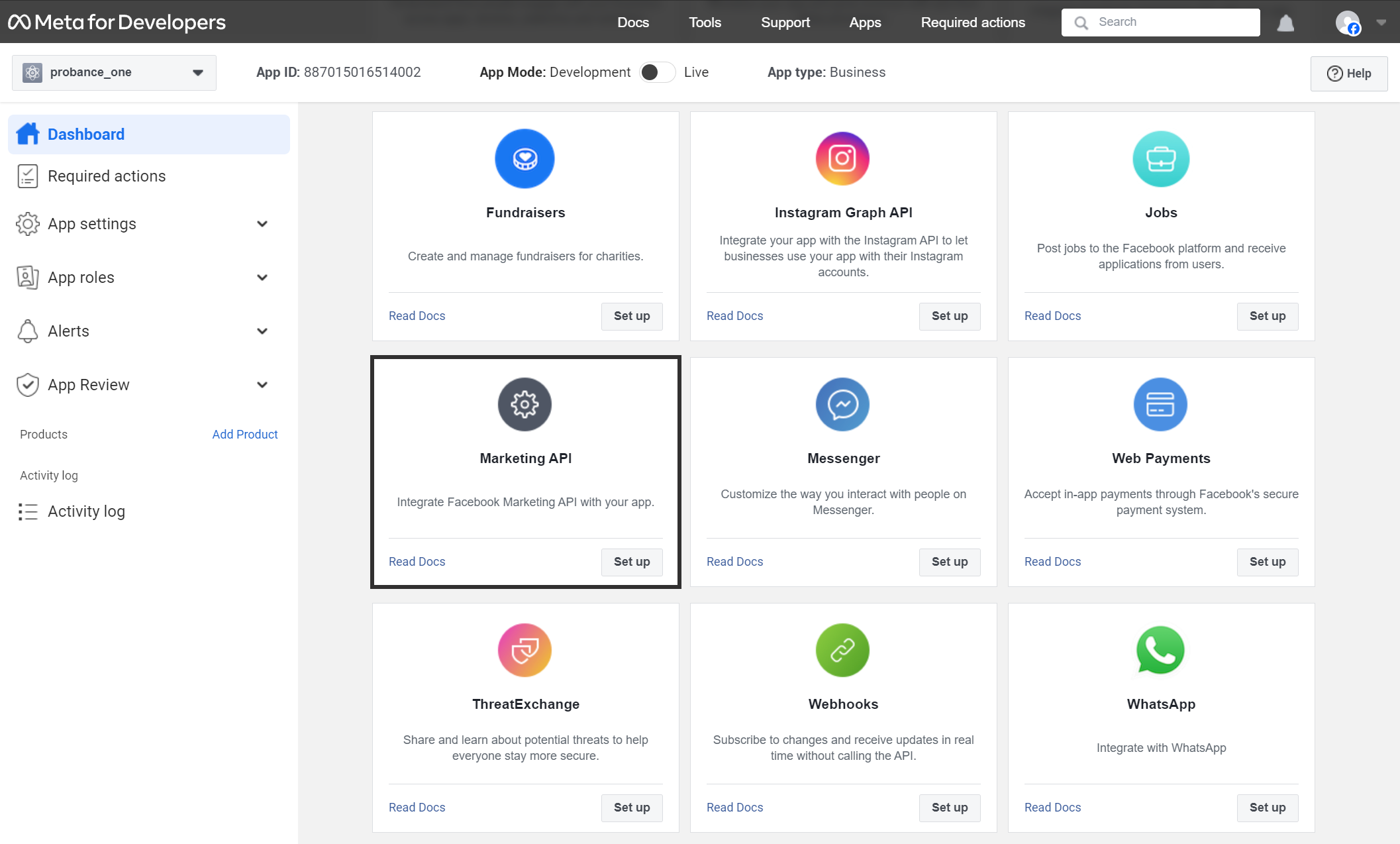
- In the list of products, select Marketing API and click Set Up. Marketing API will be added to the products of your app.
- In the Marketing API > Tools menu, check the three options offered in the Get access token section: ads_management, ads_read, and read_insights. Then click Get Token.
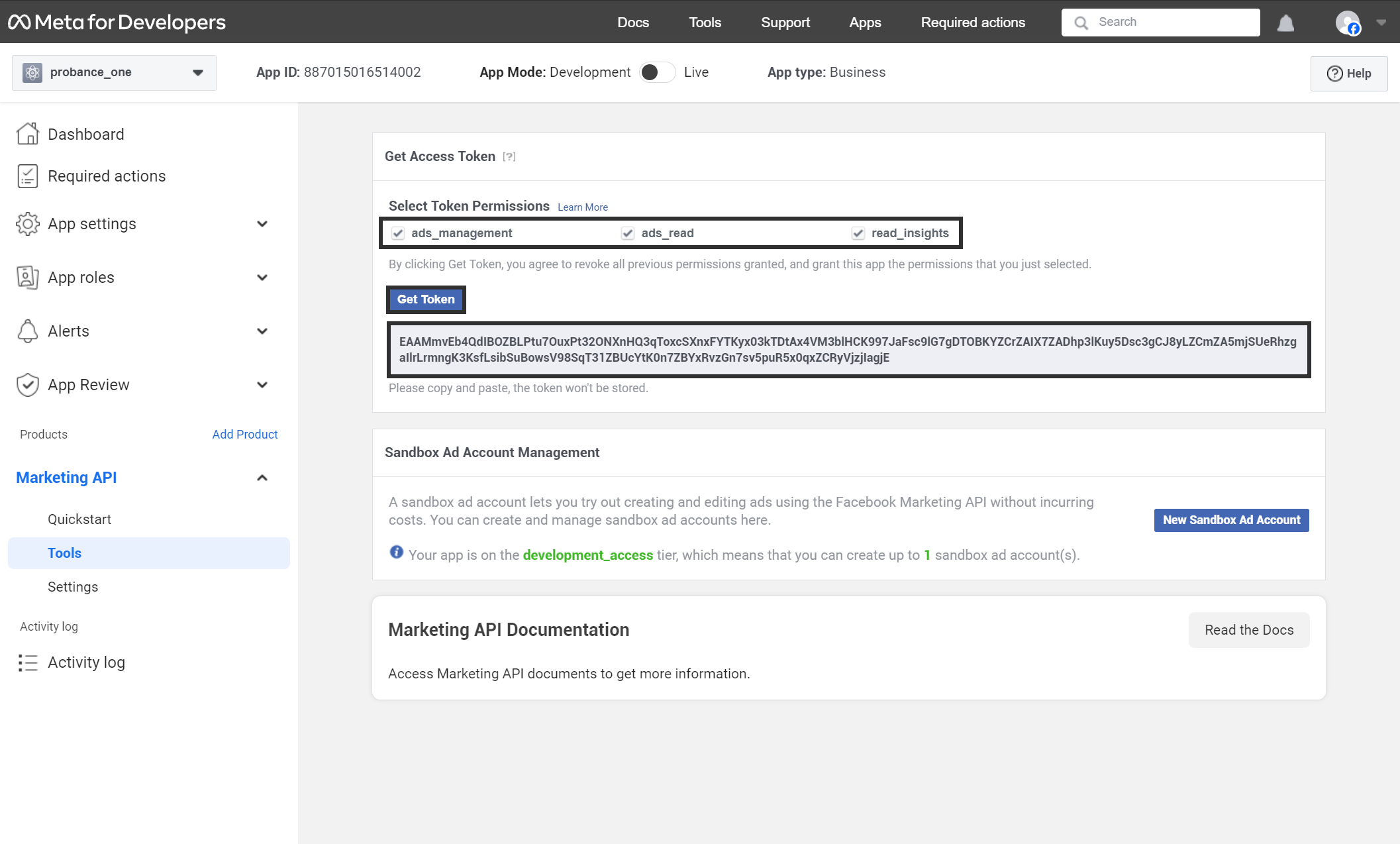
- This token is not the final token required for setting up the connector, but it should be saved for the duration of the installation.
2. Generating an Unlimited Token
- Go to Business Settings in your Meta Business Suite interface, then open the Users > System Users menu.
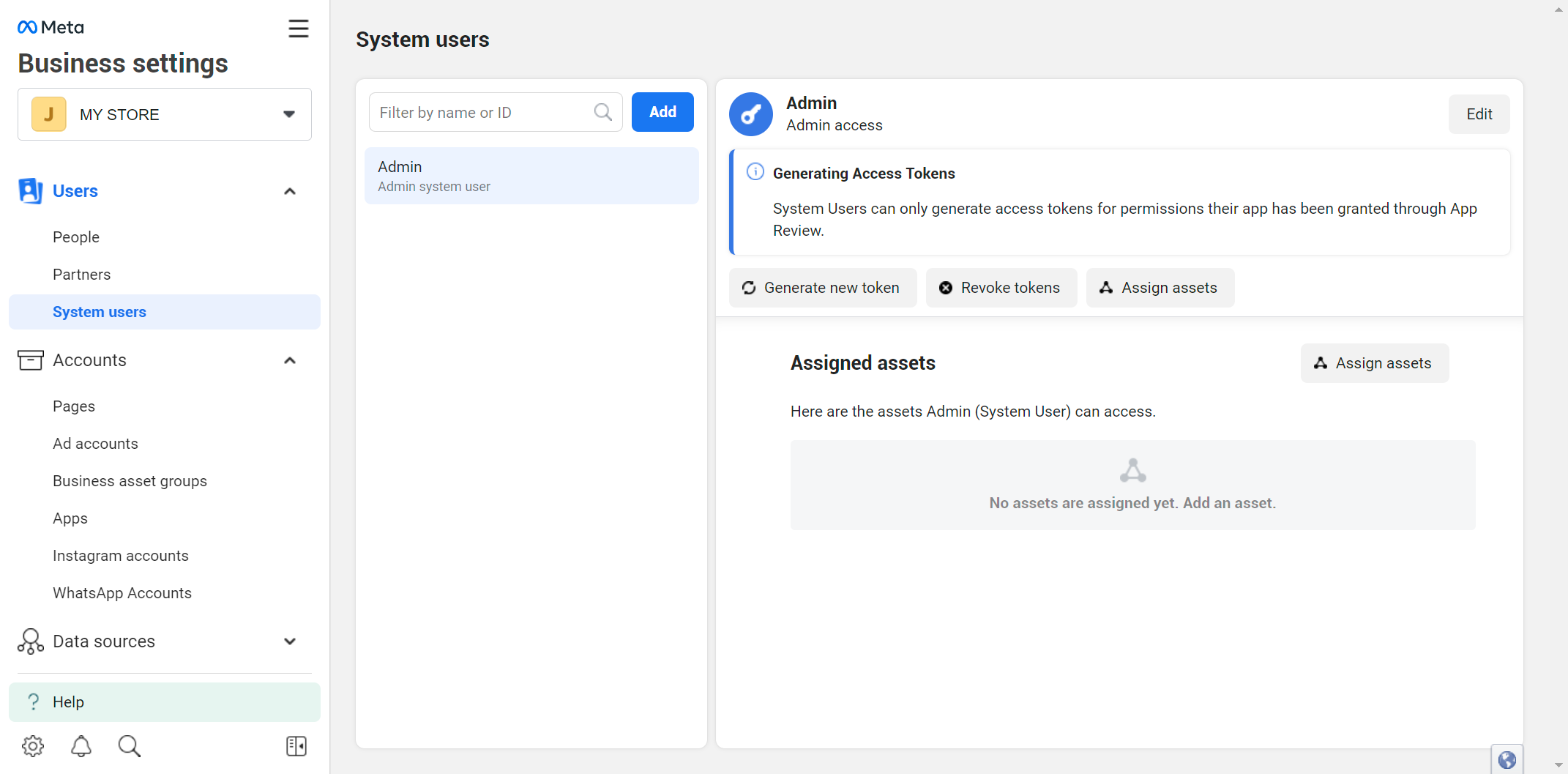
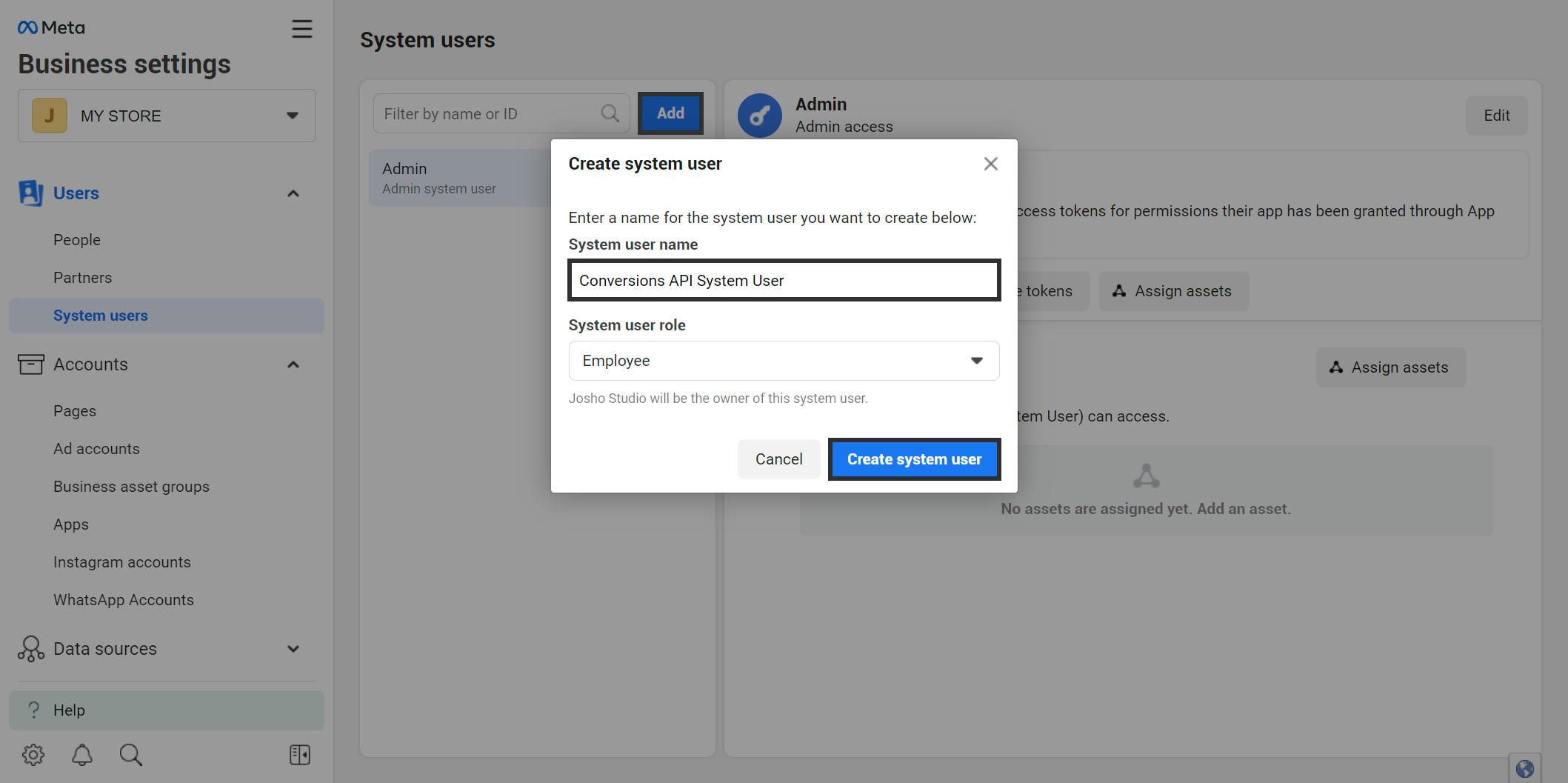
- If no system user exists for your account, you must create one: click Add, name the user (here, we name it Conversions API System User), and confirm the creation.
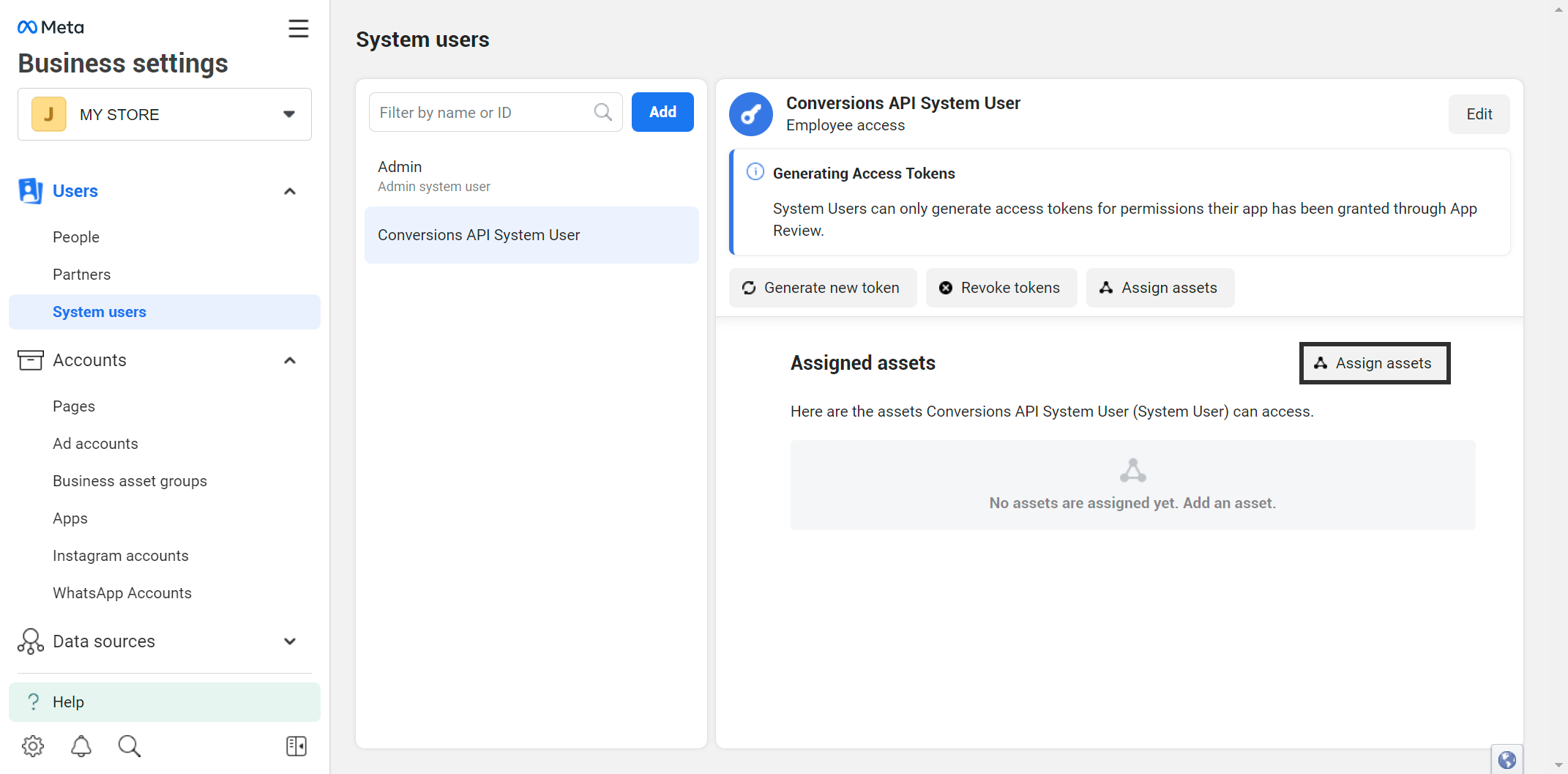
- Select your system user in the list and click Assign Assets.
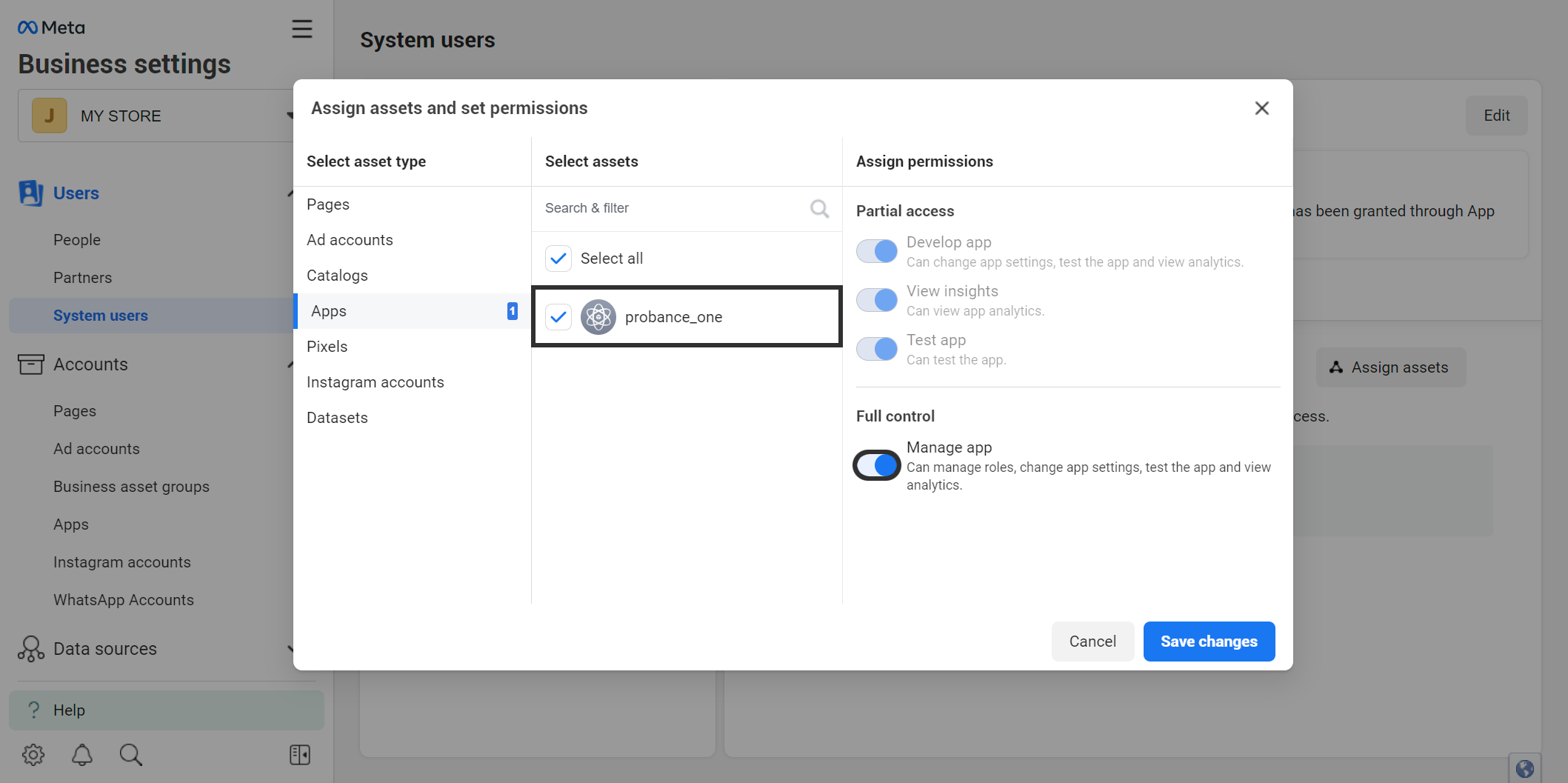
- In Applications, select probance_one and enable Full Control.
- In Ad Accounts, select your Business account and enable at least Partial Access – Manage Campaigns.
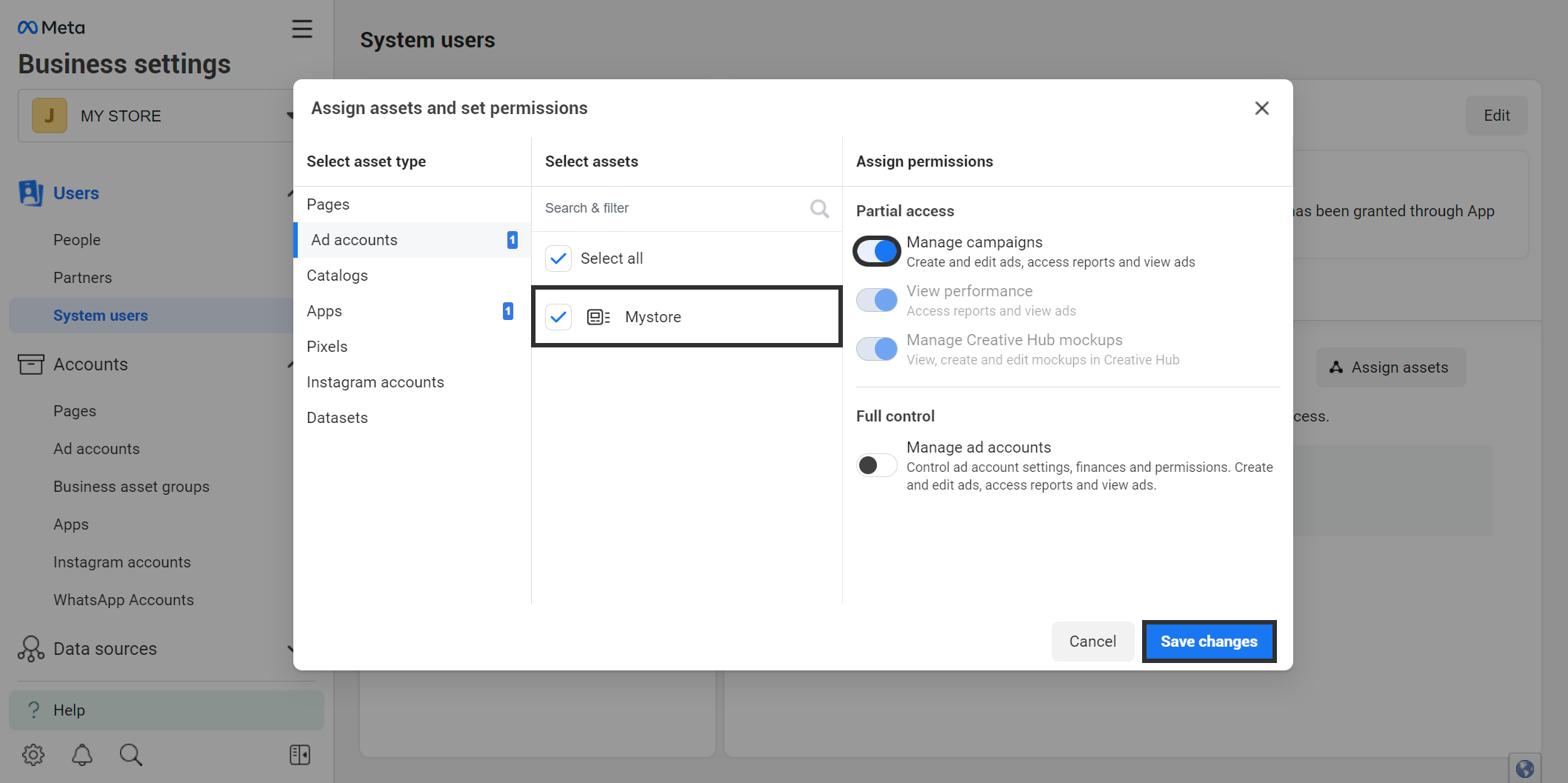
- Save your changes.
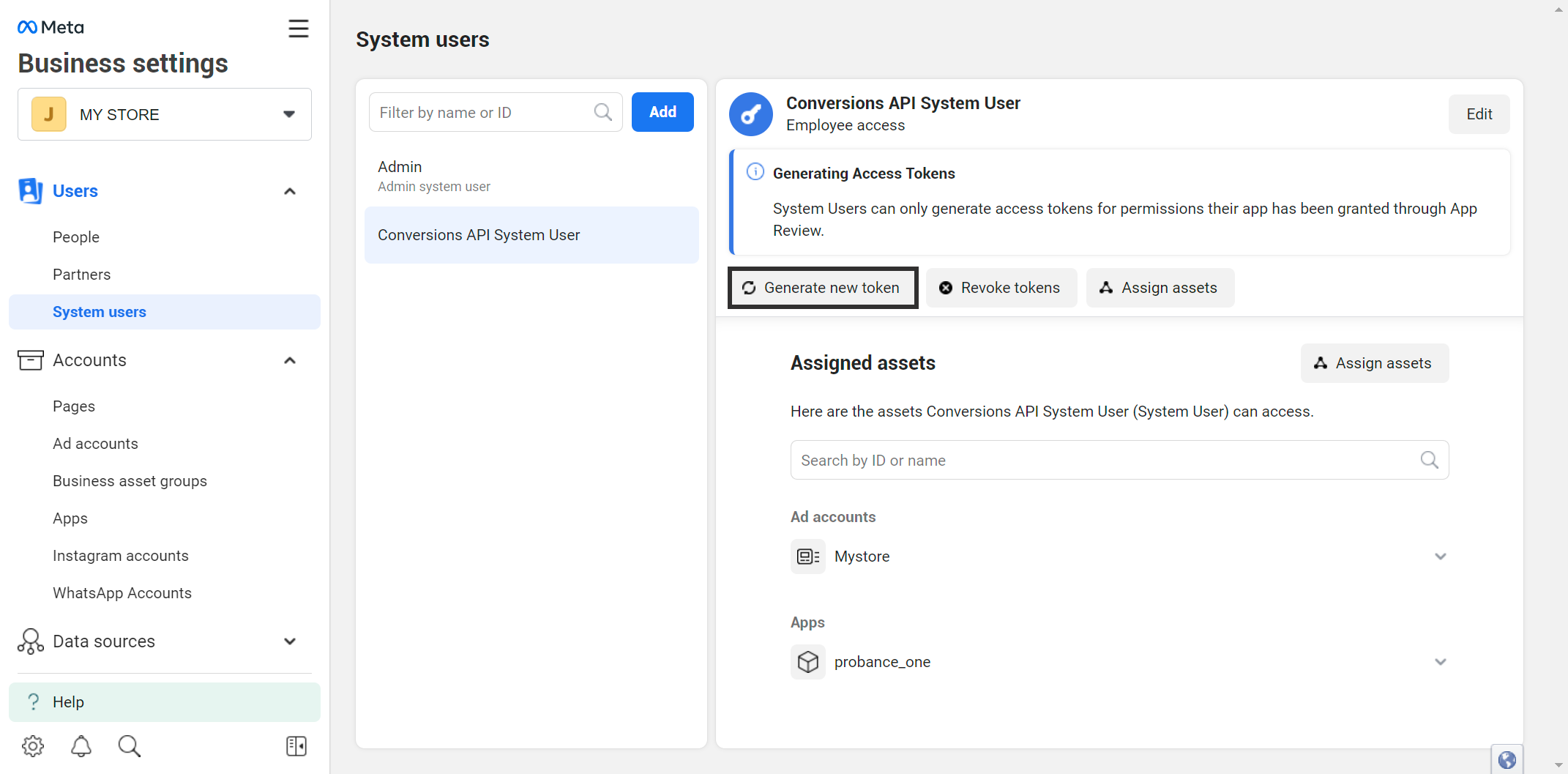
- Still in the configuration of your system user, click Generate new token.
- Select the app probance_one and set the token expiration to Never. In the list of permissions, check the following options:
- read_insights
- ads_read
- ads_management
- business_management
- All rights for anything starting with “pages_”
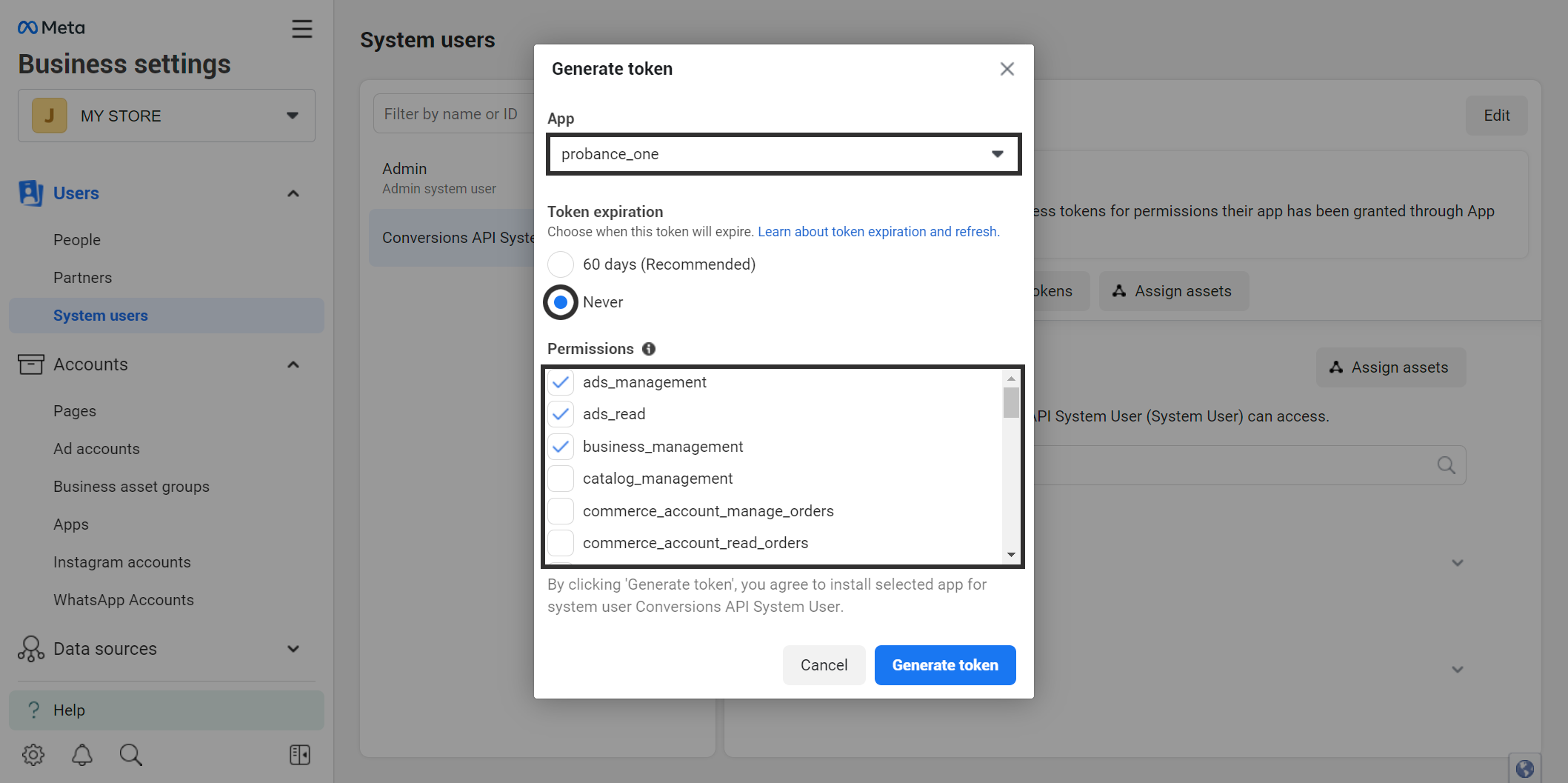
- Click Create Access Token.
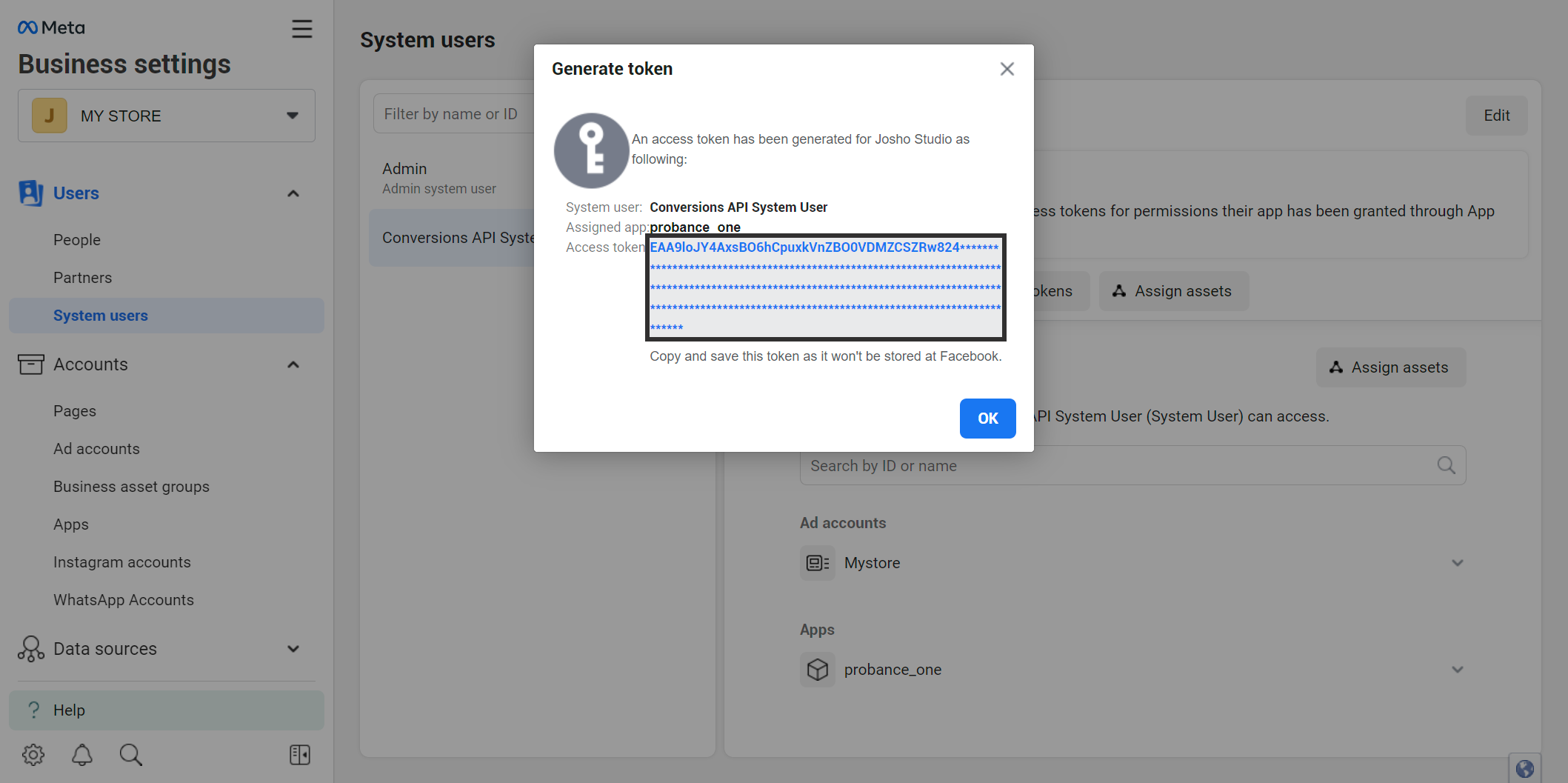
This access token is the unlimited token that must be provided to the Probance consultant in charge of setting up your project.
3. Retrieving the Advertising Account ID
- Still in the Business Settings of Meta Business Suite, open the Accounts > Ad Accounts menu.
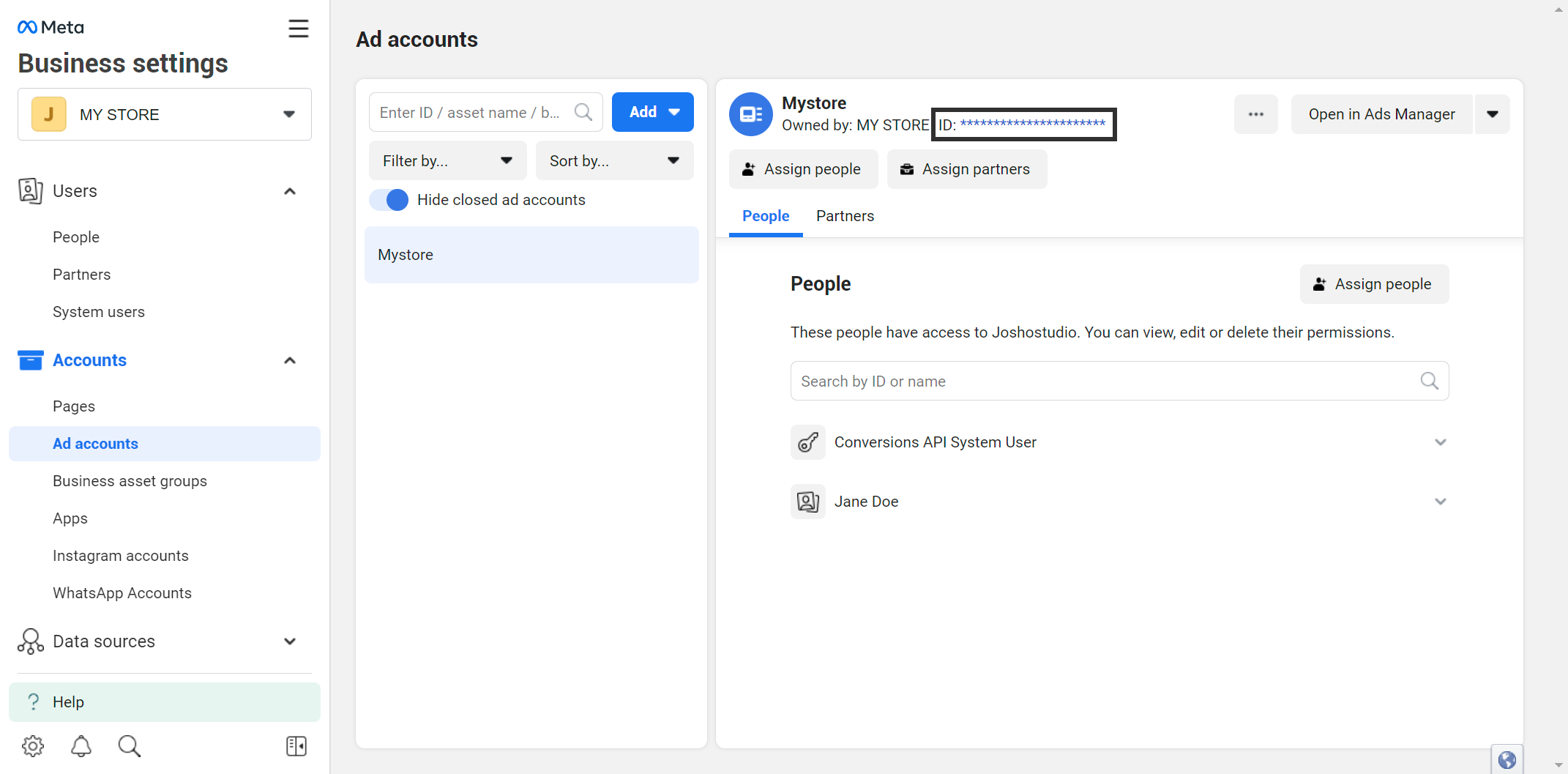
- Select your account from the list. The ID is displayed in the page header, under the account name.
This identifier must be provided to the Probance consultant in charge of setting up your project.