
This article details the steps to create the DNS entries required to configure your sending subdomain on OVH without delegation of authority.
Procedure
In your OVH dashboard, go to the Web Cloud page. Select your domain from the Domain names menu, and open DNS Zone tab.
Configuring your subdomain requires the creation of 9 DNS records:
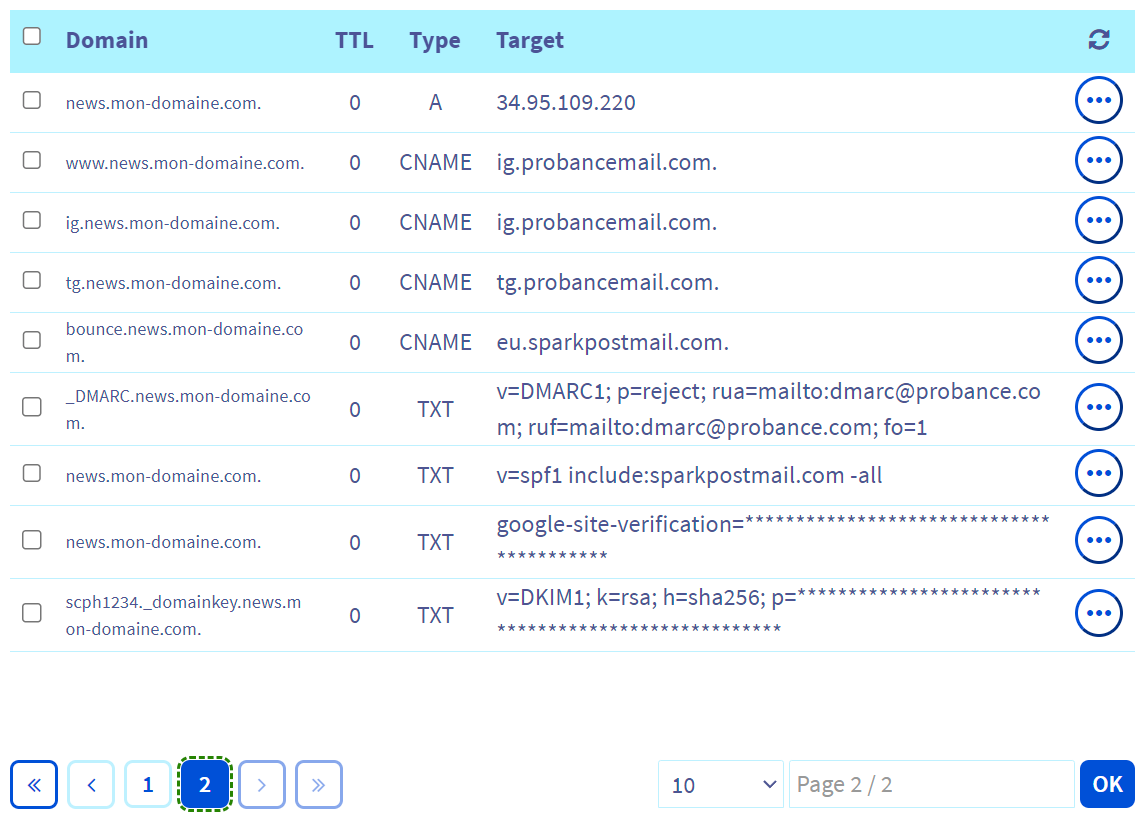
We will use the subdomain name ‘news’ for the following example.
Record 1
1. Click on Add an entry
2. Select the DNS field type A
3. Enter the following information in the form:
- Subdomain: [your subdomain]
- TTL: keep the default value
- Target:
34.95.109.220
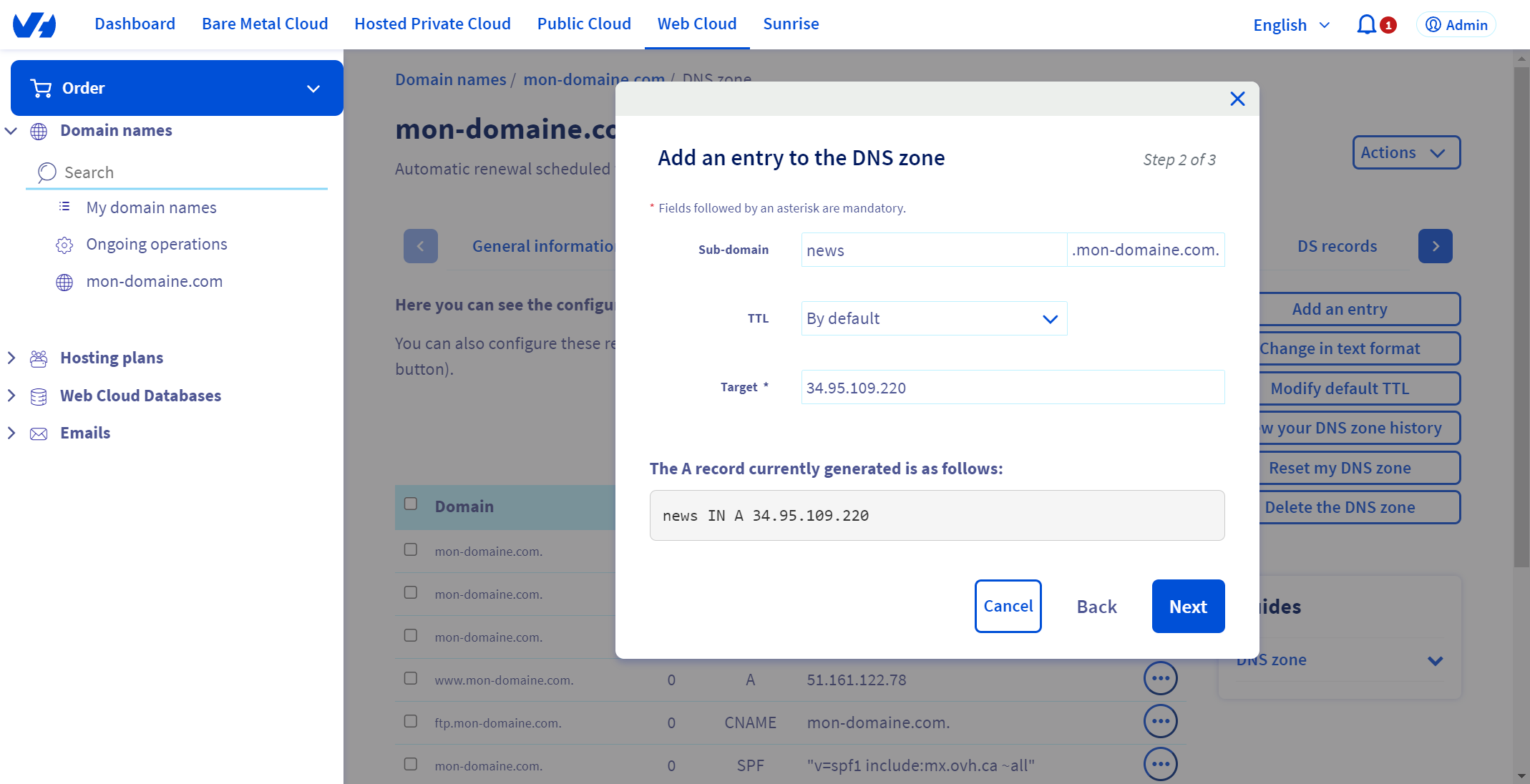
Click on Next.
4. Verify the information of this entry, then click on Confirm to add the record
Record 2
1. Click on Add an entry
2. Select the DNS field type CNAME
3. Enter the following information in the form:
- Subdomain: [your subdomain]
- TTL: keep the default value
- Target:
ig.probancemail.com
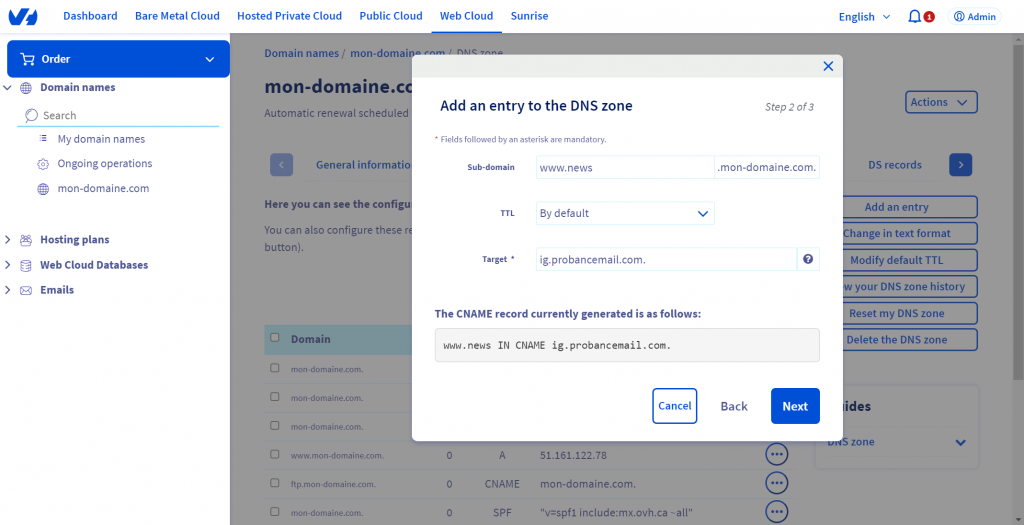
Click on Next.
4. Verify the information of this entry, then click on Confirm to add the record
Record 3
1. Click on Add an entry
2. Select the DNS field type CNAME
3. Enter the following information in the form:
- Subdomain: [your subdomain]
- TTL: keep the default value
- Target:
ig.probancemail.com
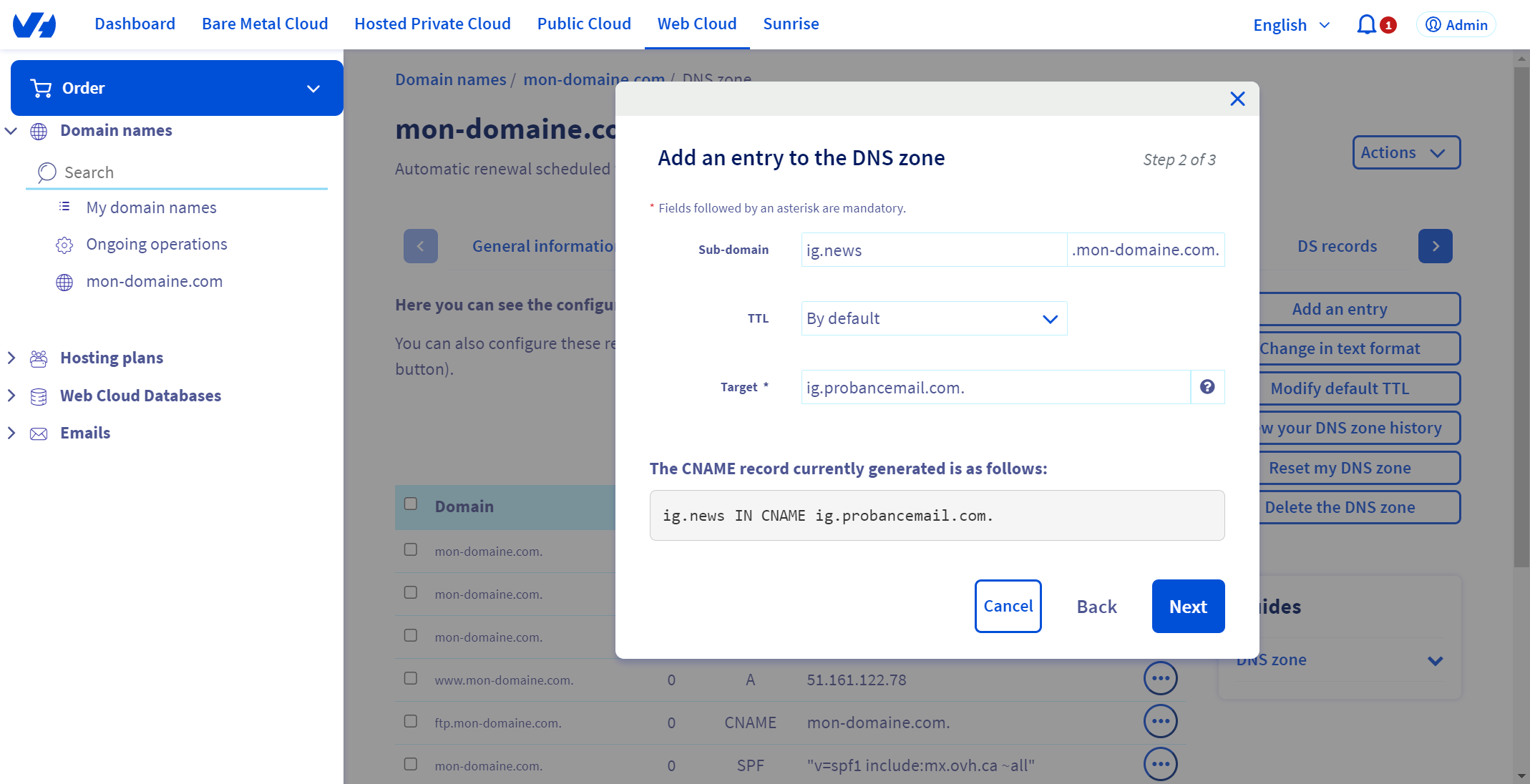
Click on Next.
4. Verify the information of this entry, then click on Confirm to add the record
Record 4
1. Click on Add an entry
2. Select the DNS field type CNAME
3. Enter the following information in the form:
- Subdomain: [your subdomain]
- TTL: keep the default value
- Target:
tg.probancemail.com
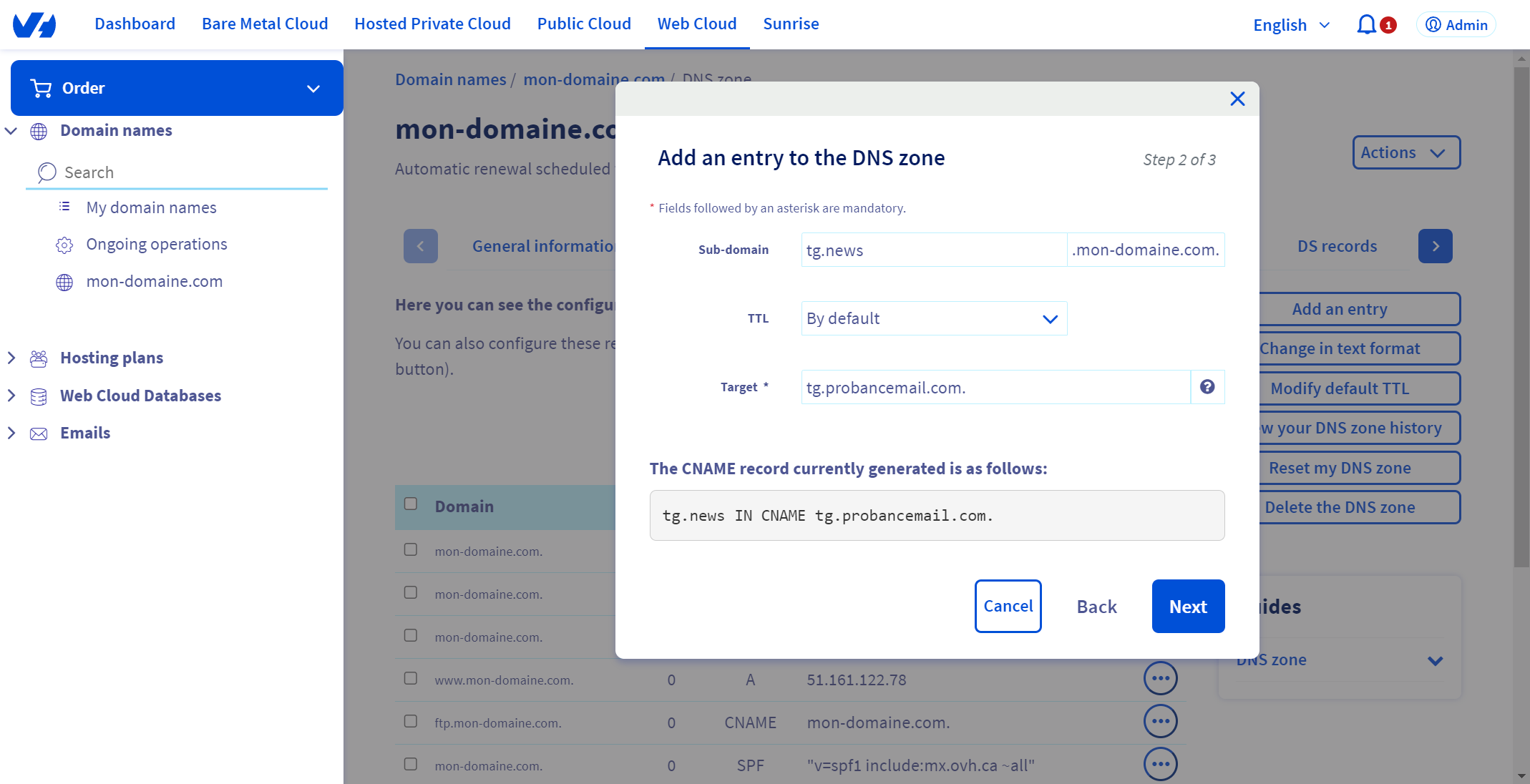
Click on Next.
4. Verify the information of this entry, then click on Confirm to add the record
Record 5
1. Click on Add an entry
2. Select the DNS field type CNAME
3. Enter the following information in the form:
- Subdomain: [your subdomain]
- TTL: keep the default value
- Target:
eu.sparkpostmail.com
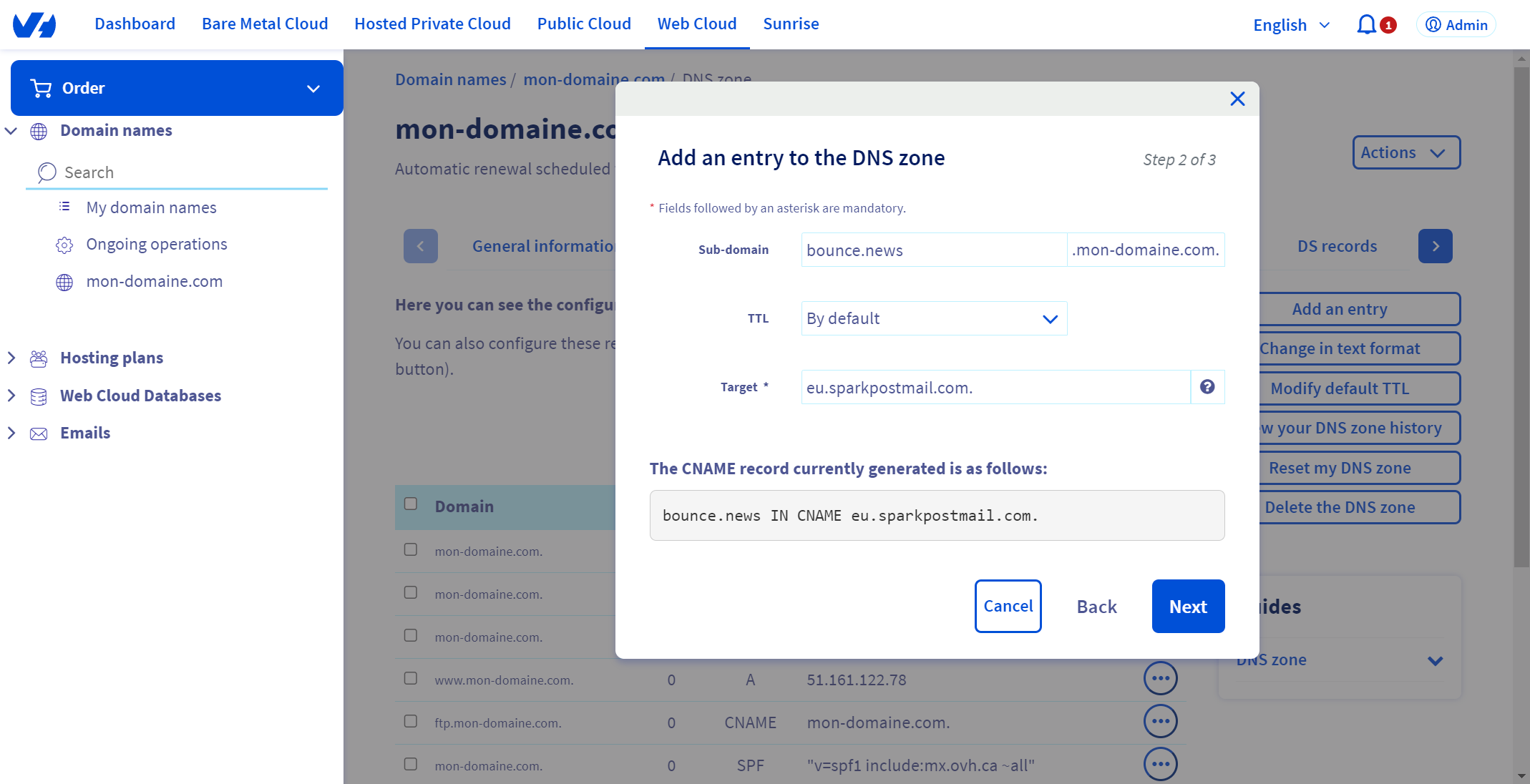
Click on Next.
4. Verify the information of this entry, then click on Confirm to add the record
Record 6
1. Click on Add an entry
2. Select the DNS field type TXT
3. Enter the following information in the form:
- Subdomain: _DMARC.[your subdomain]
- TTL: keep the default value
- Value:
v=DMARC1; p=reject; rua=mailto:dmarc@probance.com; ruf=mailto:dmarc@probance.com; fo=1
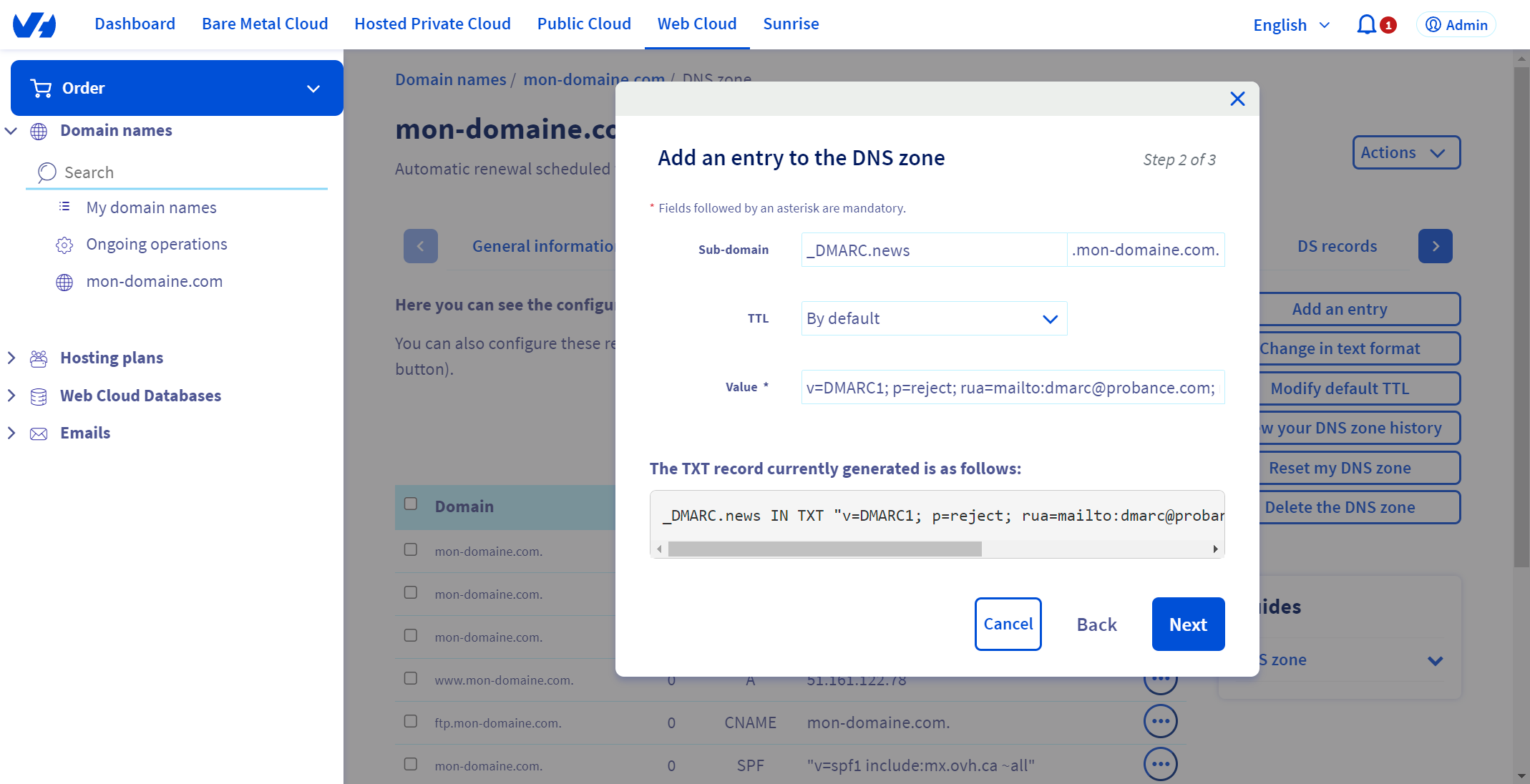
Click on Next.
4. Verify the information of this entry, then click on Confirm to add the record
Record 7
1. Click on Add an entry
2. Select the DNS field type TXT
3. Enter the following information in the form:
- Subdomain: [your subdomain]
- TTL: keep the default value
- Value:
v=spf1 include:sparkpostmail.com -all
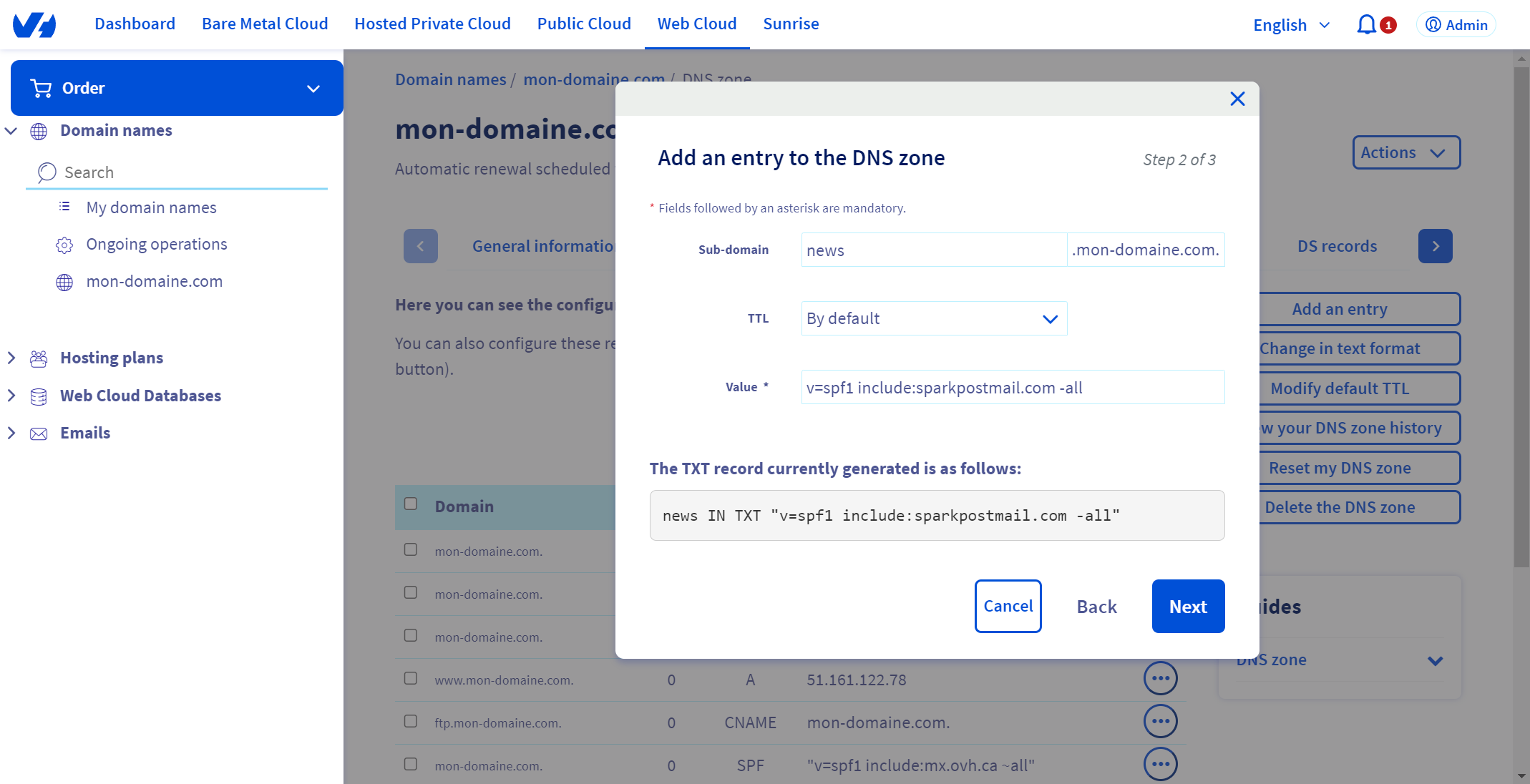
Click on Next.
4. Verify the information of this entry, then click on Confirm to add the record
Record 8
1. Click on Add an entry
2. Select the DNS field type TXT
3. Enter the following information in the form:
- Subdomain: [your subdomain]
- TTL: keep the default value
- Value: Google key provided by your Probance consultant
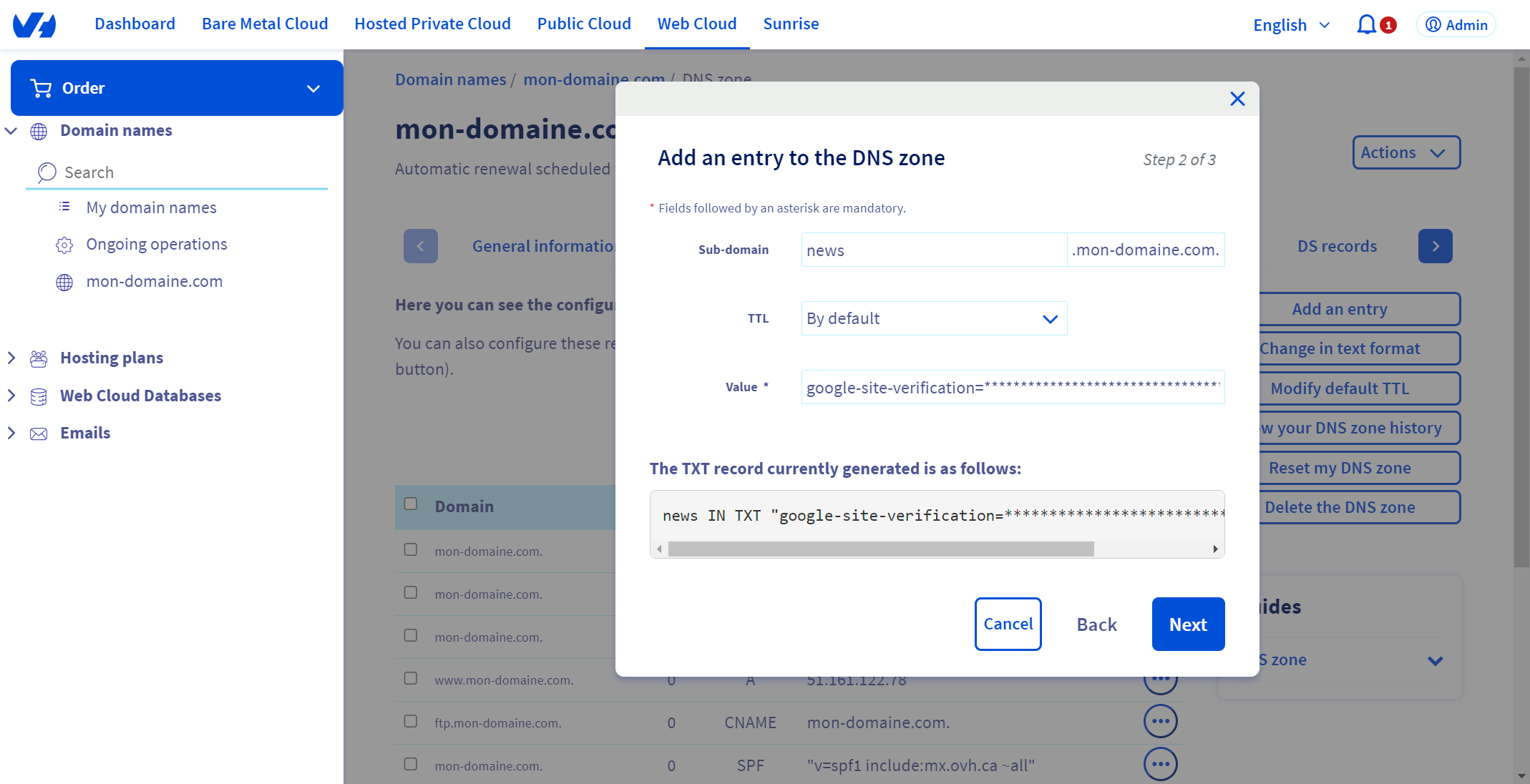
Click on Next.
4. Verify the information of this entry, then click on Confirm to add the record
Record 9
1. Click on Add an entry
2. Select the DNS field type TXT
3. Enter the following information in the form:
- Subdomain: value provided by your Probance consultant
- TTL: keep the default value
- Value: value provided by your Probance consultant
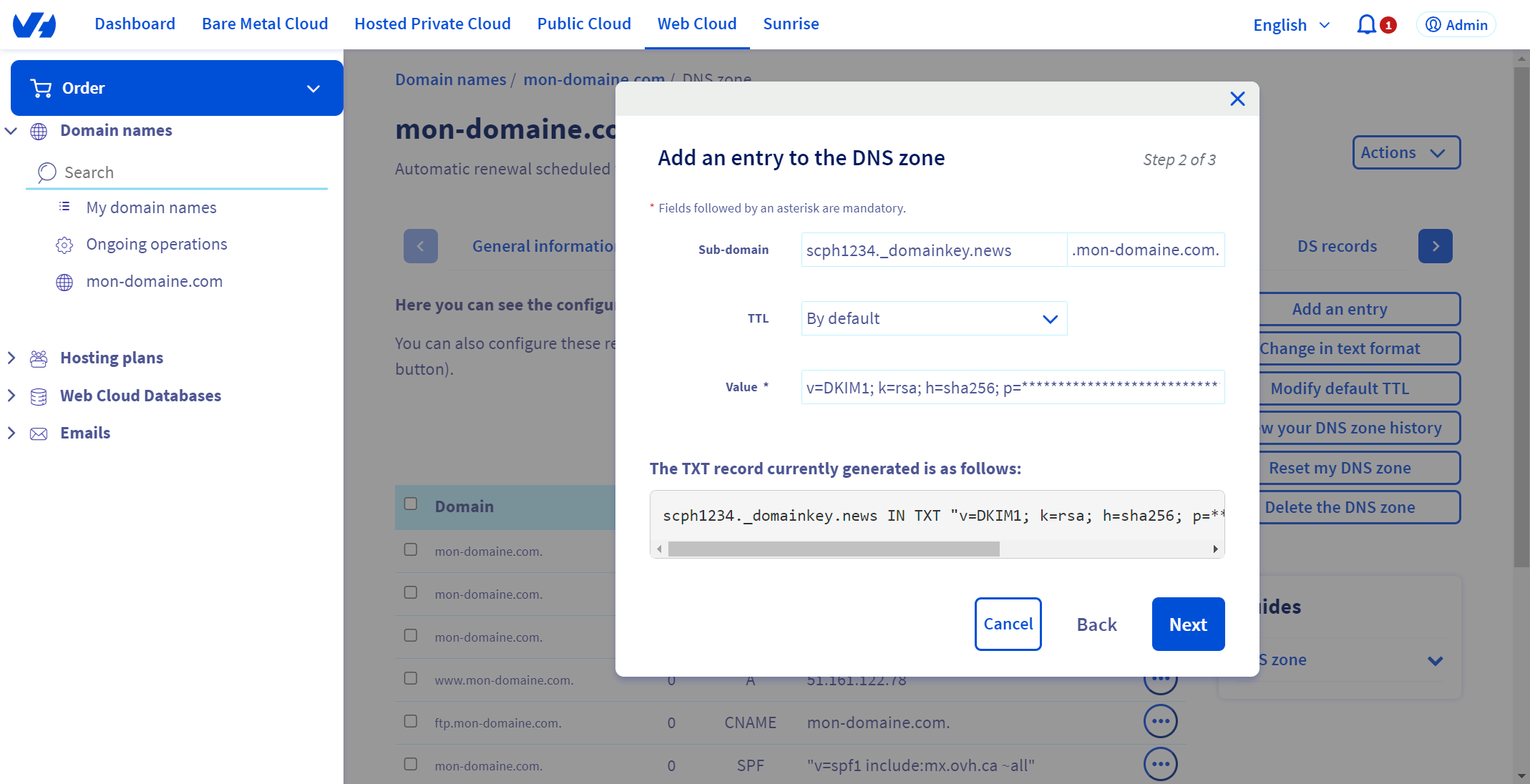
Click on Next.
4. Verify the information of this entry, then click on Confirm to add the record