
Our Shopify module allows you to automatically generate discount codes for use in your campaigns, targeted for recipients who are registered in your Shopify database.
This tutorial will explain how to create a master discount in Shopify, and how to use it in a campaign to generate targeted promo codes.
To use this feature, Probance module for Shopify must be installed on your website.
1. Creating a master discount
A master discount is a discount code created with specific configurations to be identified by the connector and used to generate promo codes dynamically when sending campaigns through Probance One.
When a master code is used in a campaign, the corresponding discount code in Shopify is duplicated to create one or more codes restricted to the campaign’s recipients (one promo code is generated for every 100 recipients).
The master code must be set up with all the desired characteristics and conditions of the discount, such as the type and value of the discount, validity period, or shipping fee handling. It must also comply with specific rules for integration into Probance One.
Your master discount will be available in Probance One, and be usable in campaigns the day after its creation in Shopify.
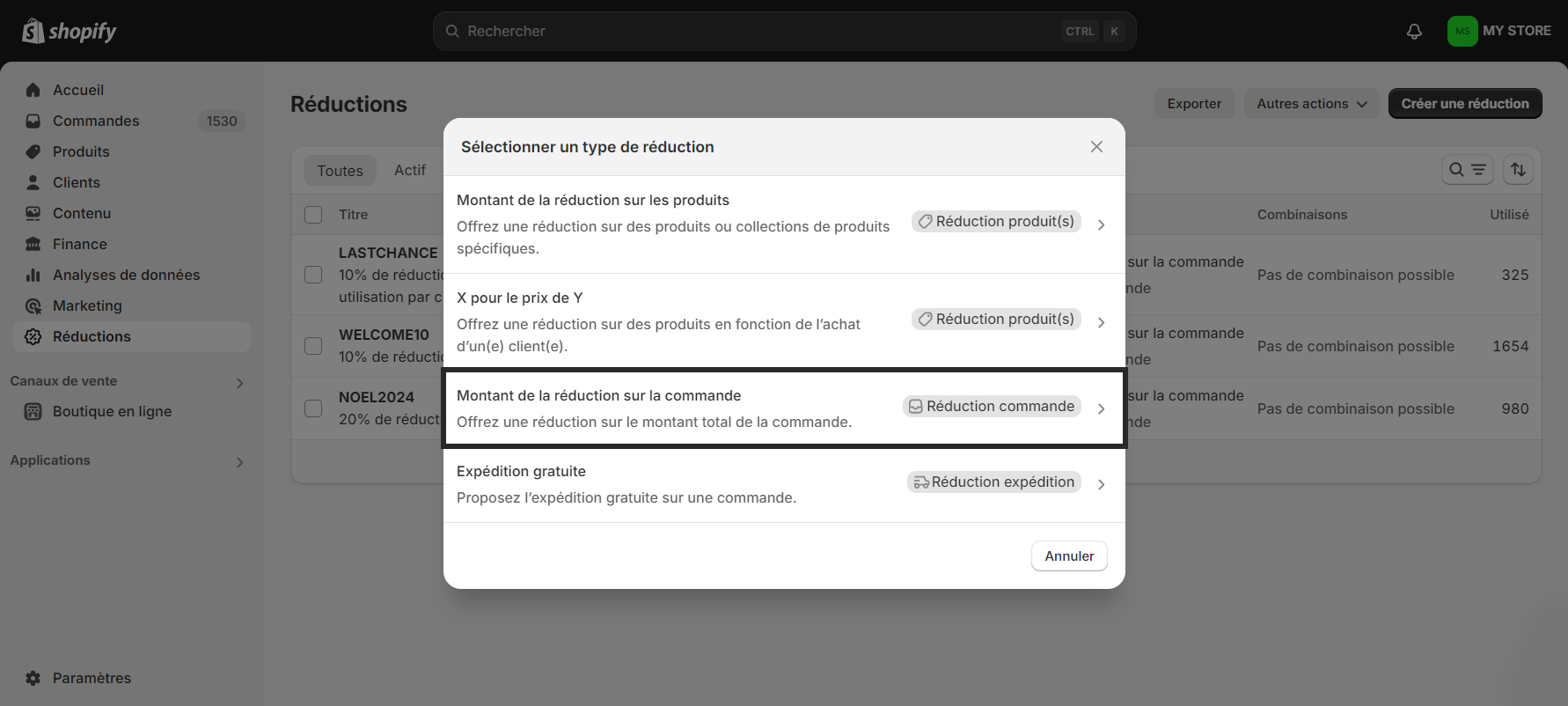
Go to the Discounts menu in Shopify and click on Create a discount.
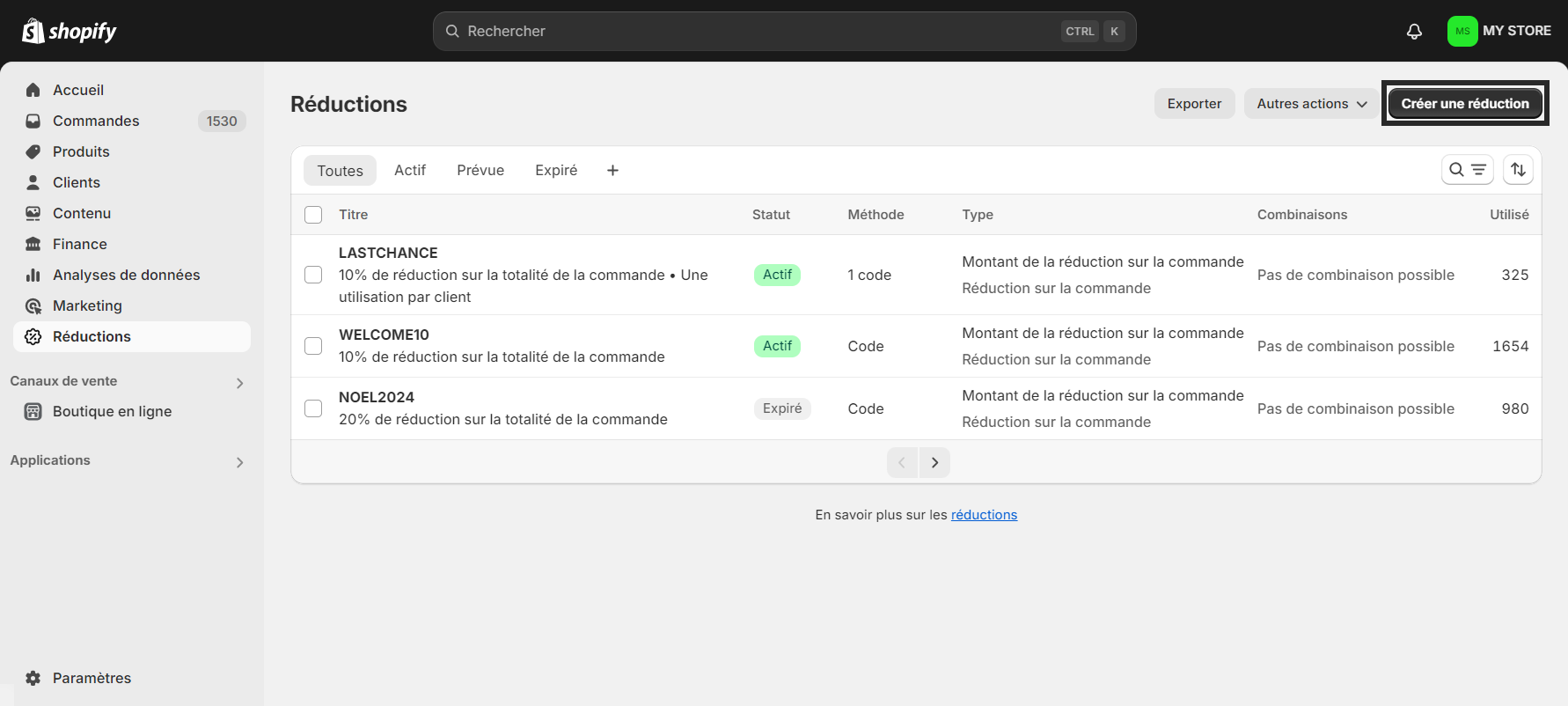
4 typed of discount are available:
- Amount off products : a discount is applied on specific products or product families.
- Buy X get Y : a product is offered at a discounted price or for free when purchasing specific products.
- Amount off order : a discount is applied on the total amount of the order.
- Free shipping : shipping costs are waived.
1.1. Amount off products
- Select the option Amount off products
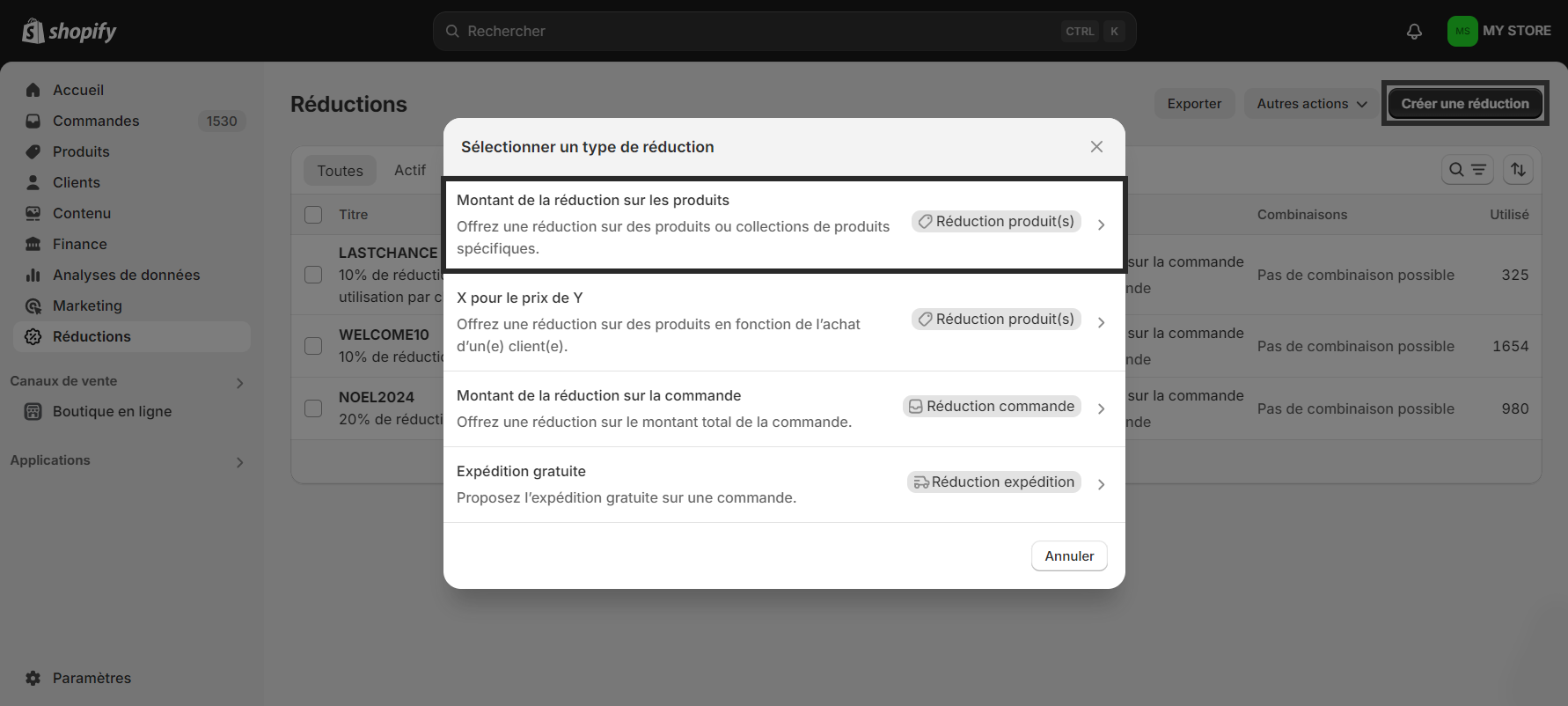
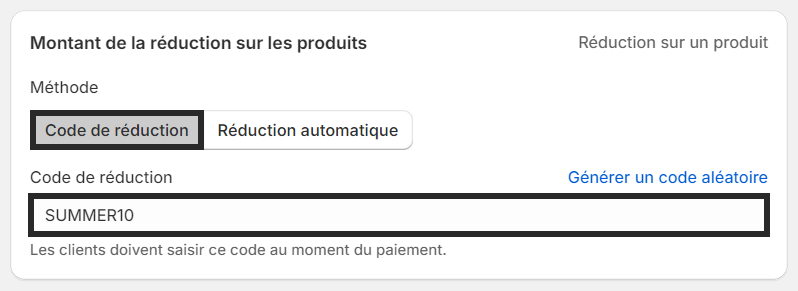
- In the Amount off products section, select the Discount code method. In the Discount code field, enter a value that will allow you to easily identify the master. This code will be used to configure the master in Probance One.
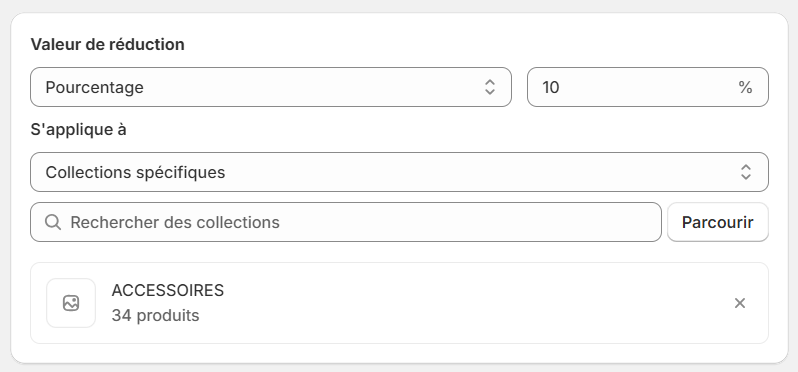
- In the Discount value section, select the type of discount to apply (percentage or fixed amount) and set its value. Then, select the eligible products or collections.
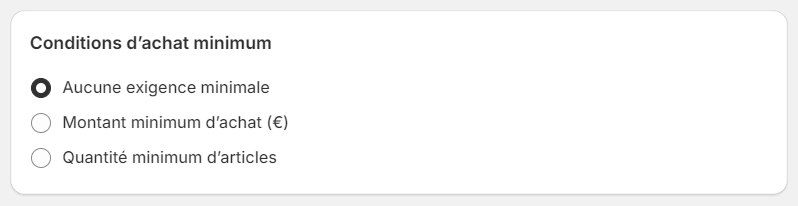
- The Minimum purchase requirements section allows you to define a minimum amount or number of items required for the discount to apply.
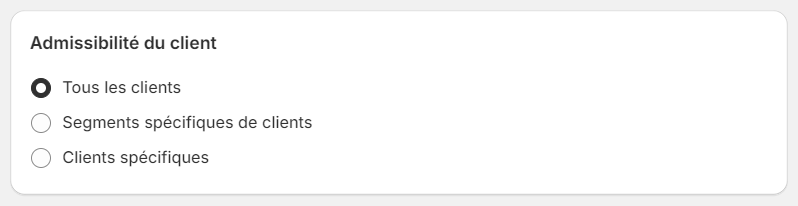
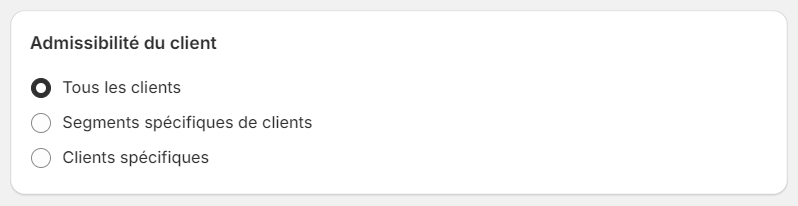
- In Customer eligibility, select the All customers option.
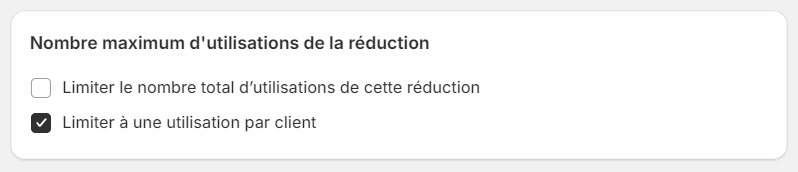
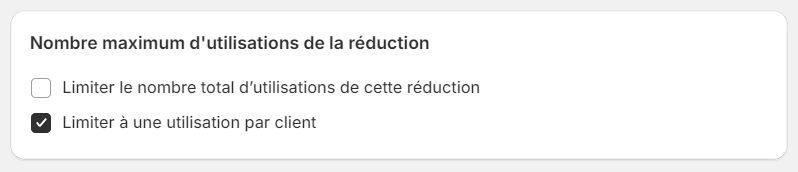
- The Maximum discount uses section allows you to limit the number of times the code can be used. To make the code usable once per recipient, check the Limit to one use per customer option.
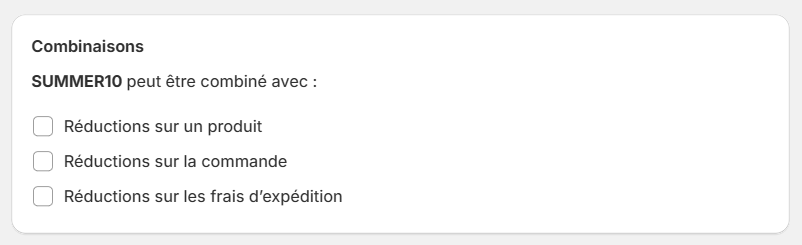
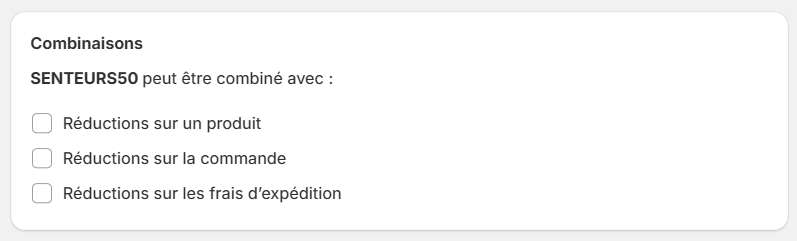
- The Combinations section allows you to define with which other discounts the code can be combined.
- The Active Dates section allows you to define the validity period of your coupon. If your code must be valid for a limited time, check the Set end date option and define the expiration date of the coupon.
- Click on Save to confirm.
1.2. Buy X get Y
1) Select the option Buy X get Y.
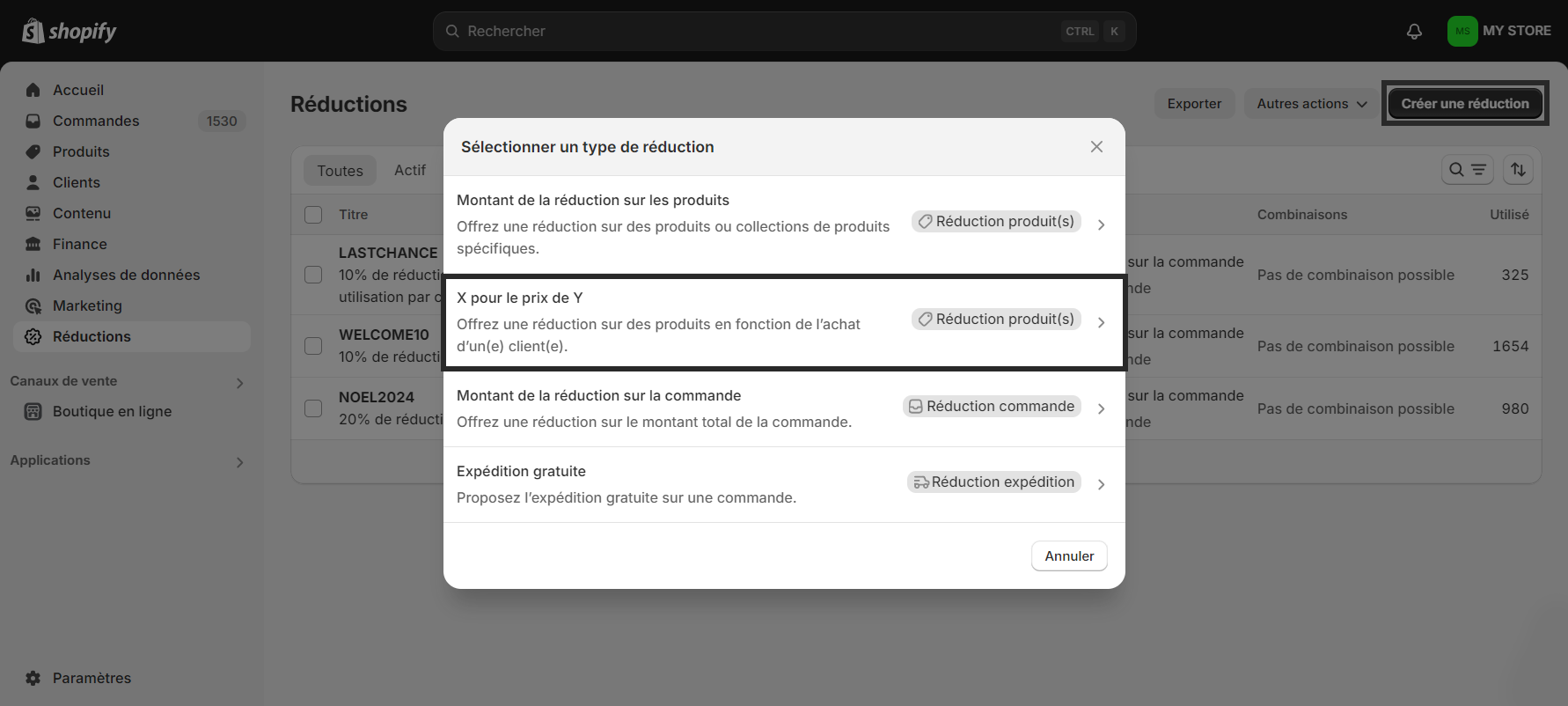
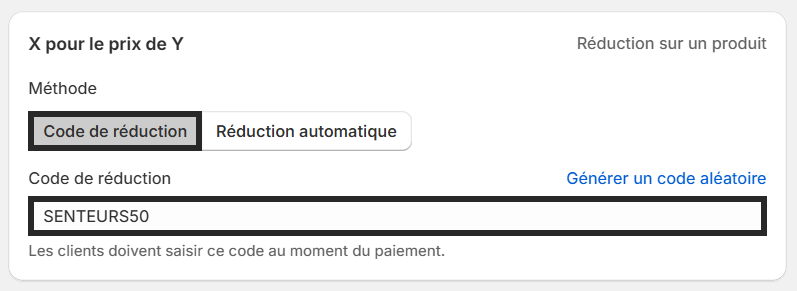
2) In the Buy X get Y section, select the Discount code method. In the Discount code field, enter a value that will allow you to easily identify the master. This code will be used to configure the master in Probance One.
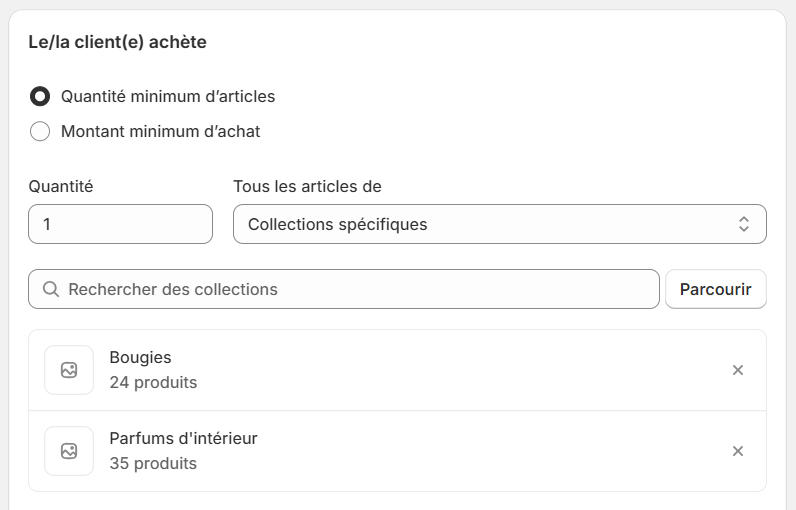
3) In the Customer buys section, define the conditions for applying the code: select the eligible product(s) or collection(s) and the minimum quantity or amount to purchase for the discount to apply.
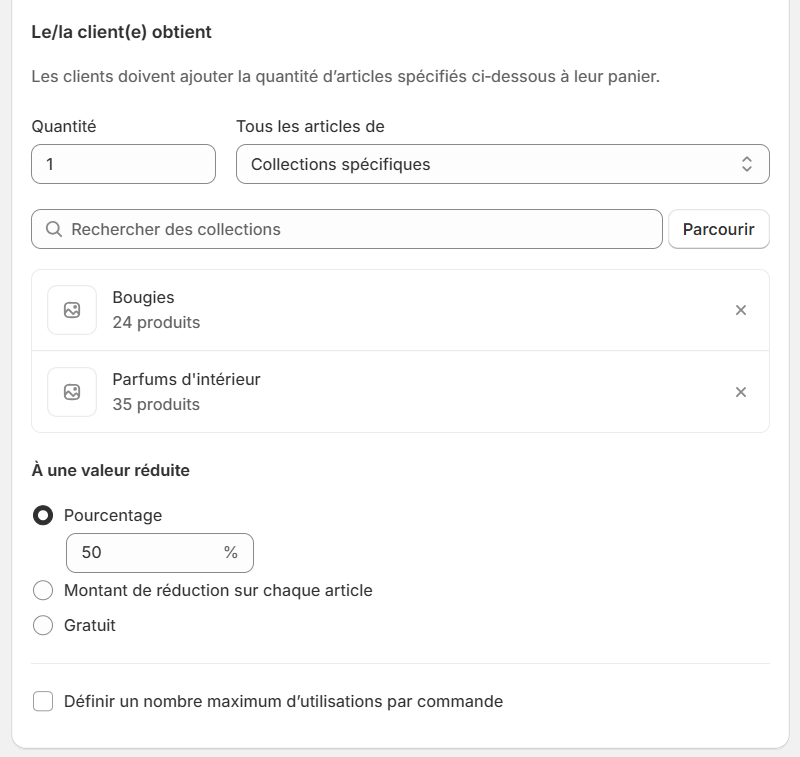
4) Then define the product(s) or collection(s) to be offered in the Customer gets section, and set the discount to apply in the At a discounted value section.
5) In Customer eligibility, select the All customers option.
6) The Maximum discount uses section allows you to limit the number of times the code can be used. To make the code usable once per recipient, check the Limit to one use per customer option.
7) The Combinations section allows you to define with which other discounts the code can be combined.
8) The Active Dates section allows you to define the validity period of your coupon. If your code must be valid for a limited time, check the Set end date option and define the expiration date of the coupon.
9) Cliquez sur Enregistrer la réduction pour valider.
1.3. Amount off order
1) Select the option Amount off order.
2) In the Amount off order section, select the Discount code method. In the Discount code field, enter a value that will allow you to easily identify the master. This code will be used to configure the master in Probance One.
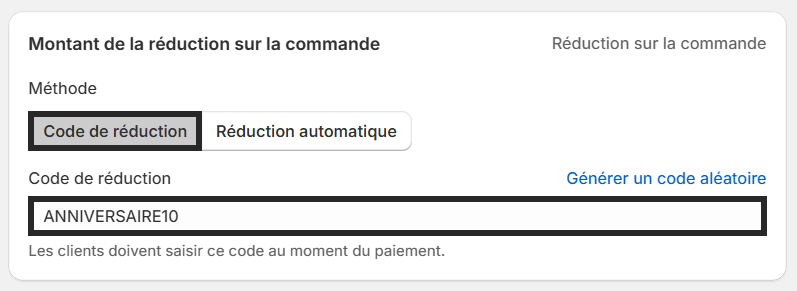
3) In the Discount Value section, select the type of discount to apply (percentage or fixed amount) and set its value.

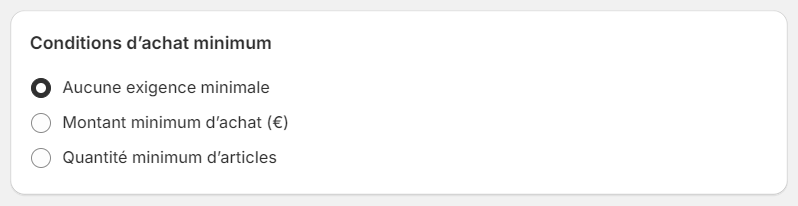
4) The Minimum purchase requirements section allows you to define a minimum amount or number of items required for the discount to apply.
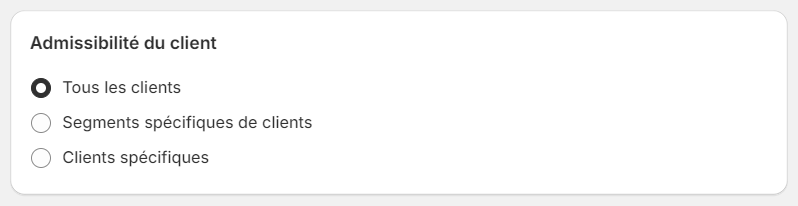
5) In Customer eligibility, select the All customers option.
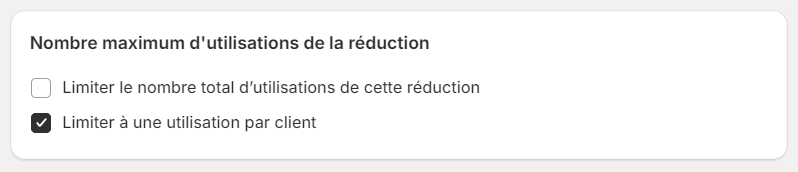
6) The Maximum discount uses section allows you to limit the number of times the code can be used. To make the code usable once per recipient, check the Limit to one use per customer option.
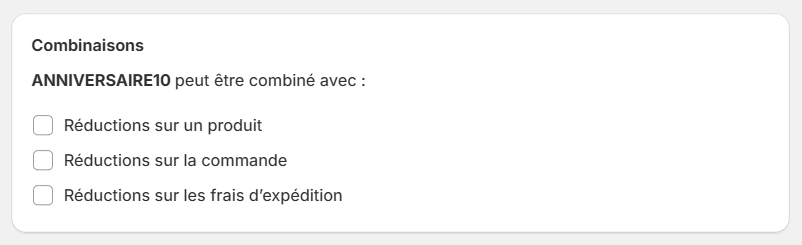
7) The Combinations section allows you to define with which other discounts the code can be combined.
8) The Active Dates section allows you to define the validity period of your coupon. If your code must be valid for a limited time, check the Set end date option and define the expiration date of the coupon.
9) Cliquez sur Enregistrer la réduction pour valider.
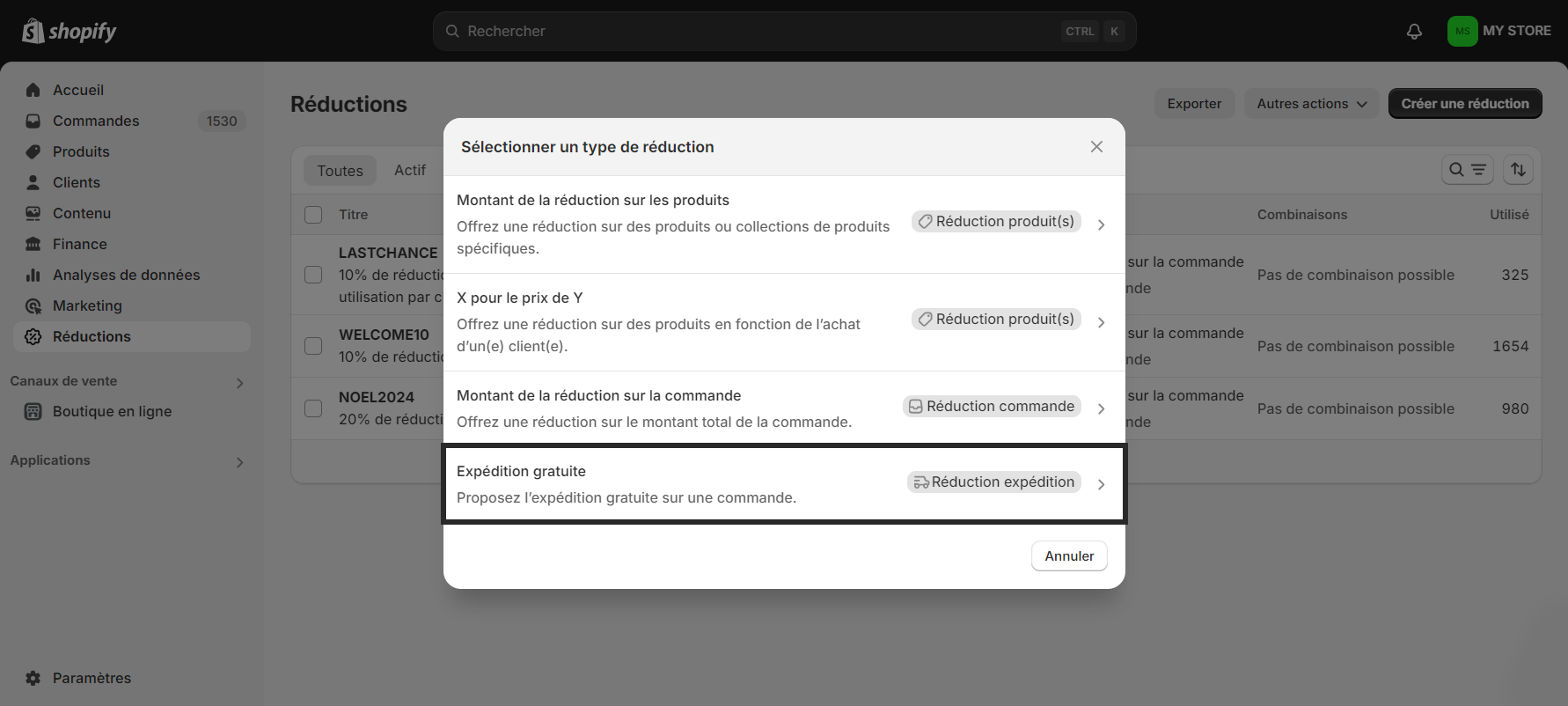
1.4. Free shipping
- Select the option Free shipping.
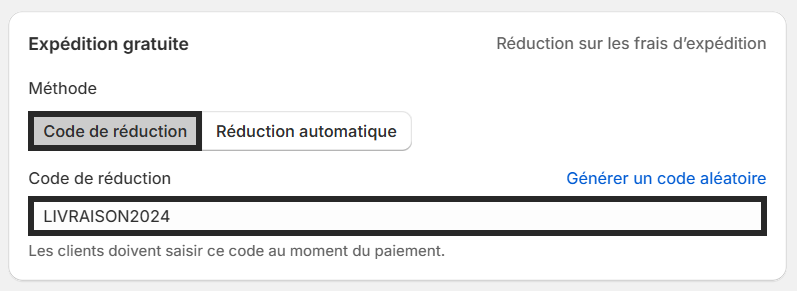
- In the Free shipping section, select the Discount Code method. In the Discount Code field, enter a value that will allow you to easily identify the master. This code will be used to configure the master in Probance One.
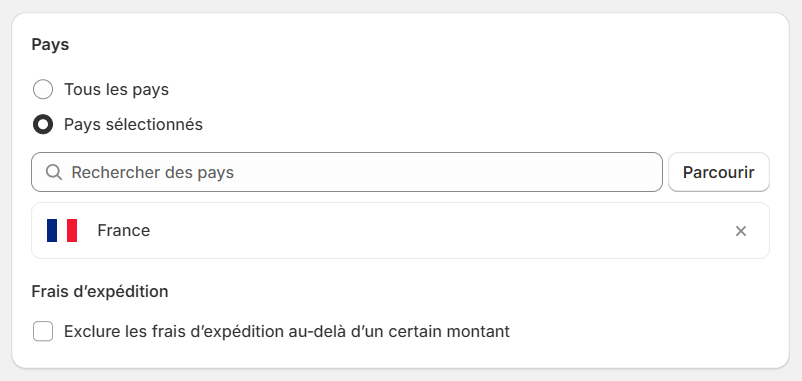
- In the Country section, define the countries where the code will apply. This configuration will be carried over to all promo codes generated from this master code.
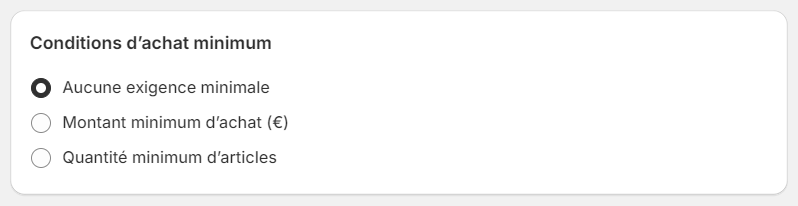
- The Minimum purchase requirements section allows you to define a minimum amount or number of items required for the discount to apply.
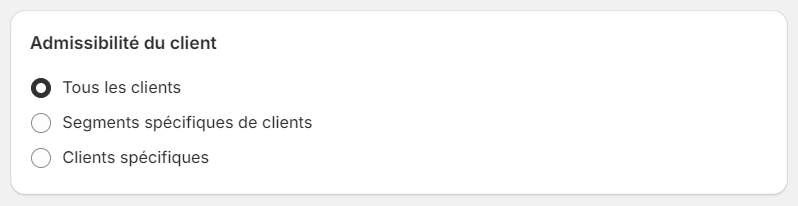
- In Customer eligibility, select the All customers option.
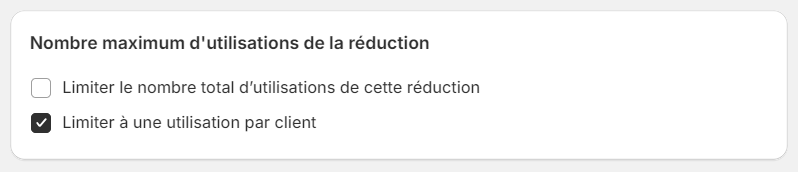
- The Maximum discount uses section allows you to limit the number of times the code can be used. To make the code usable once per recipient, check the Limit to one use per customer option.
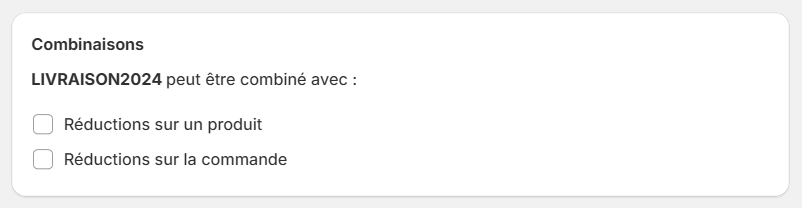
- The Combinations section allows you to define with which other discounts the code can be combined.
- The Active Dates section allows you to define the validity period of your coupon. If your code must be valid for a limited time, check the Set end date option and define the expiration date of the coupon.
- Cliquez sur Enregistrer la réduction pour valider.
2. Configure the master in Probance One
Once the master discount is available in Probance One, you can configure it as a promo code generation source in a newsletter or an automated campaign.
- Access the campaign page in Probance One, and click on Edit in the Personalized Offer section.
- Click on the edition icon of the BON_MASTER proposed offer.
- Select Choose the master code.
- Set the minimum number of offers to send the campaign at 1.
- Click on Add a constraint. Select bon_master in the first dropdown list, and Equal to in the second one. In the third field, fill up the code of your master discount in Shopify.
- Click on Save.
Then, whenever the campaign is sent, a promo code with the same configuration as the master code will be generated for every 100 recipients (that also exist in your Shopify database). The discount will be restricted to those contacts, and the validity date will be actualized.
3. Including the promo code in the template
The last thing you need to do for your contacts to receive their own individual promo code is to display it in the campaign template.
To do so, you only need to add the personalization tag ${_bon_master_bon_master_1} where you want to display the code in the template. When the campaign is sent, the tag will be replaced with the promo code of each recipient.
In the template preview and when sending test emails, the personalization tag is replaced by the code of the master.