
This tutorial will explain how to implement an automatic email, sent after a visitor subscribes to your newsletter with the subscription form built with our Optin module in Woocommerce.
Our newsletter subscription form must be configured in your Woocommerce back-office and displayed in your website to follow this tutorial. Read our dedicated guide to learn how to proceed.
1. Create an API campaign
You must first build the email that will be sent following the creating of any new account, by creating an API campaign on email channel in Probance One.
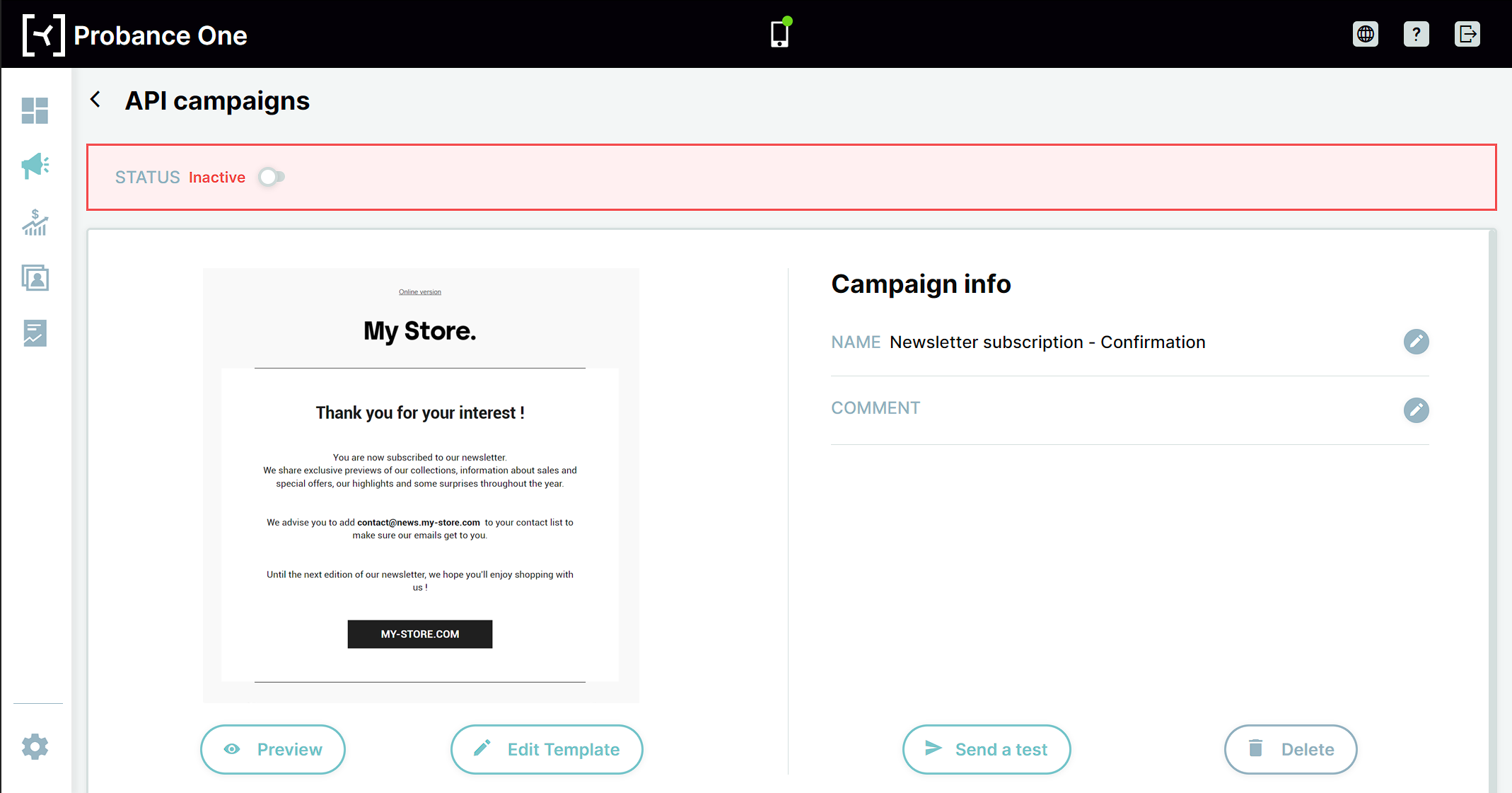
Once your campaign is ready, you won’t need the full json call to integrate it with our Woocommerce module. Only its identifier – or campaign_external_id – will be required.
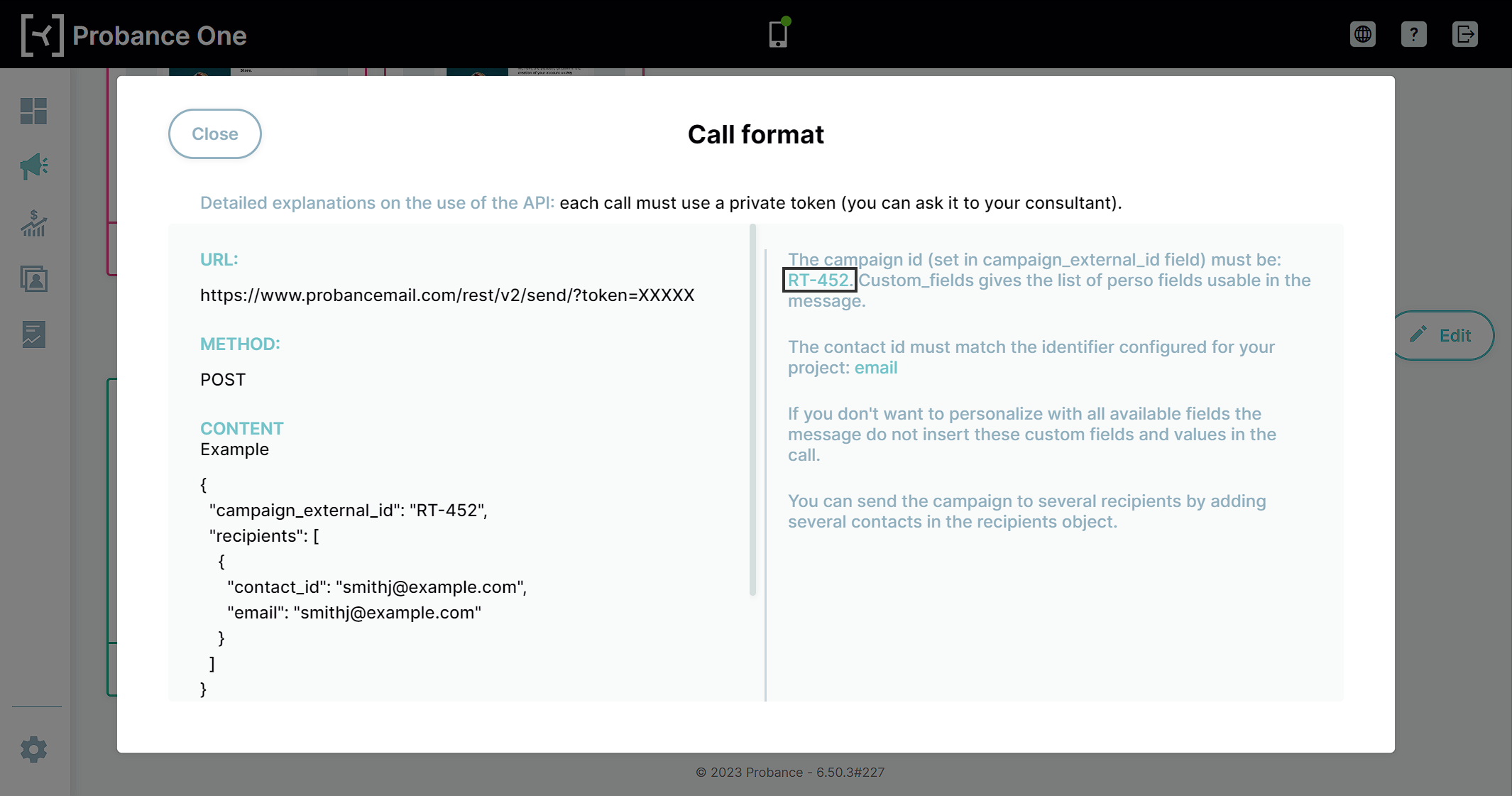
2. Configure the Optin module
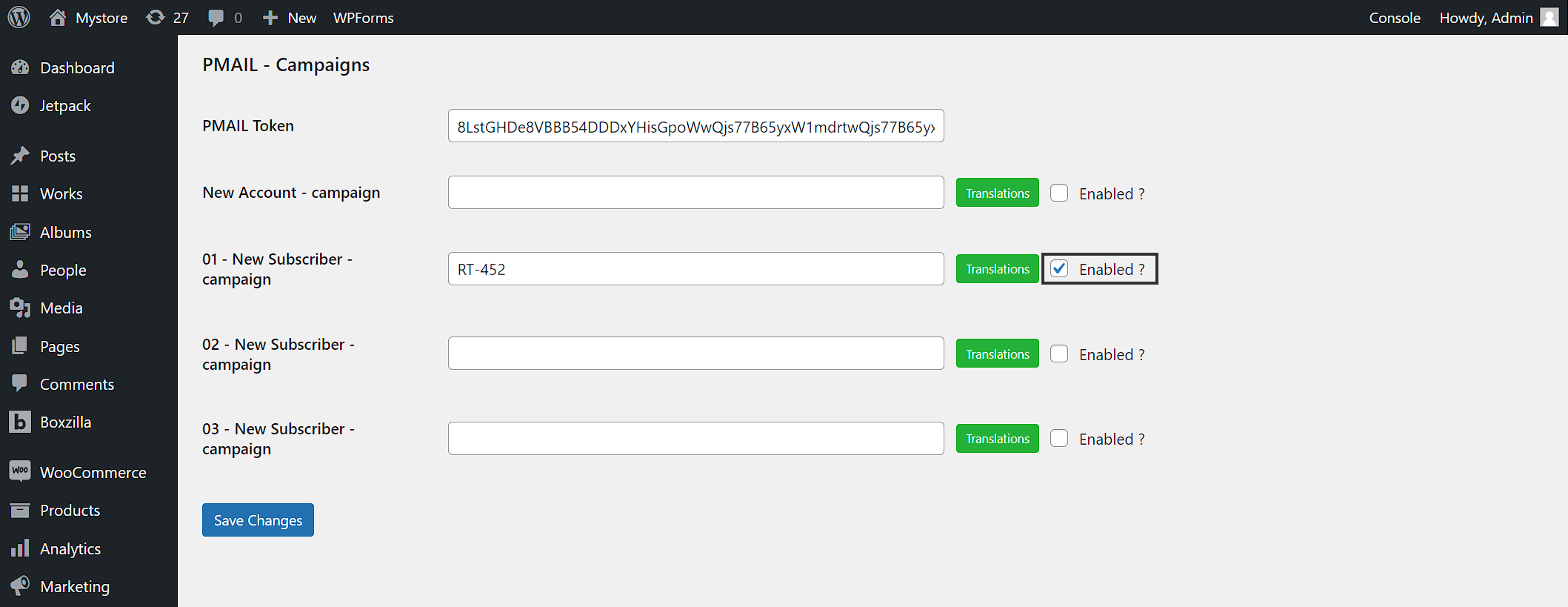
In your wordpress administration board, access the menu Probance > Optin >PMAIL – Campaigns.
- Fill in the PMAIL Token field with API token of your Pmail platform. Contact your Probance consultant to get the token.
- Fill in the 01 – New Subscriber- campaign field with the identifier of your API campaign
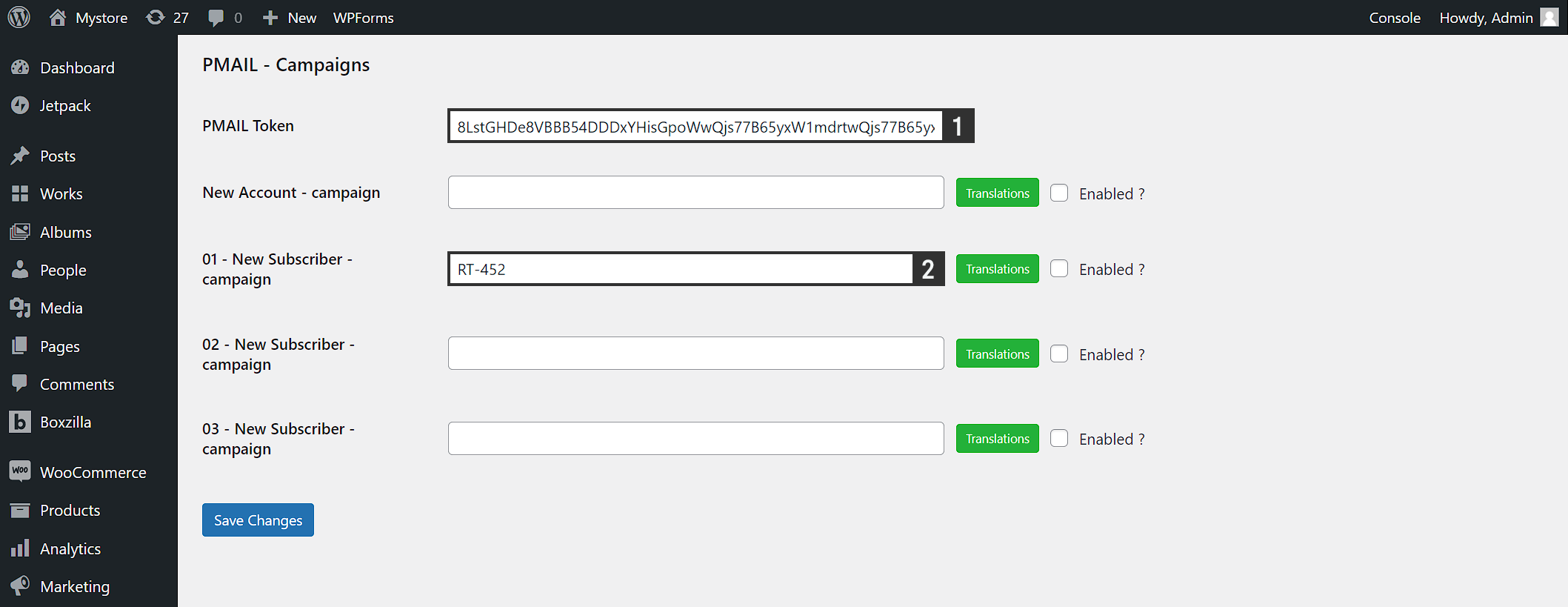
- You can configure up to 3 different campaigns to be send after a newsletter subcription, using the fields 02 – New Subscriber – campaign and 03 – New Subscriber. If there more than one version of the form in your website, this allows you to send a different email depending on which form has been filled by the visitor.
3. Link the campaign to the subscription form
To link a form to a campaign, you need to add a campaign_id parameter to its shortcode, and affect the number of the campaign it will trigger.
For example: [probance_newsletter campaign_id="01"]
campaign_id="01"will link the form to the campaign configured in the field 01 – New Subscriber – campaigncampaign_id="02"will link the form to the campaign configured in the field 02 – New Subscriber – campaigncampaign_id="03"will link the form to the campaign configured in the field 03 – New Subscriber – campaign
4. Start the sendings
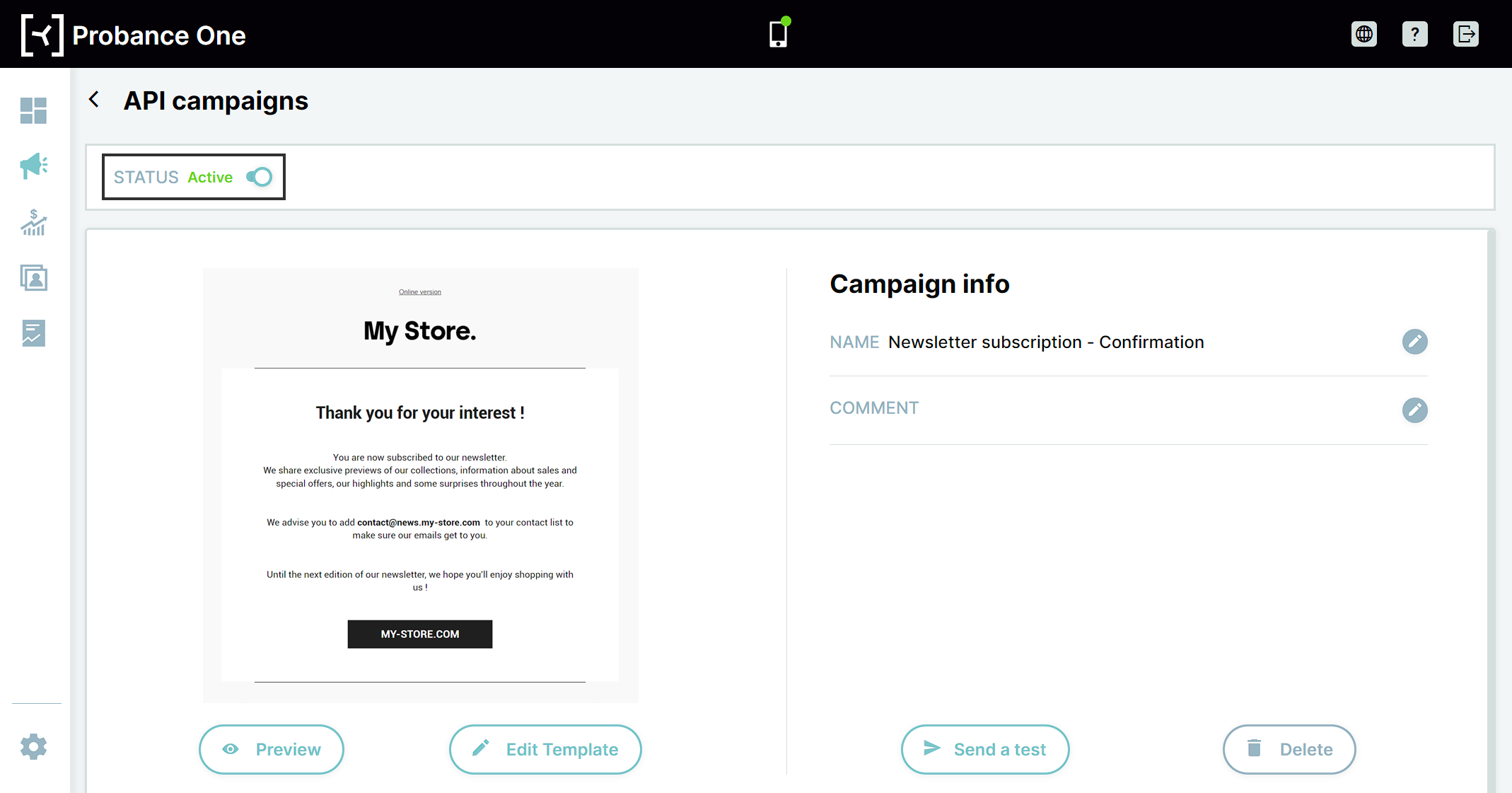
The sending will only start once the campaign is enabled in the Optin module, and the API campaign is activate in Probance One.
- To activate the API campaign in Probance One, switch its Status to Active in the campaign page.
- To enable the campaign in the Optin module, check the Enabled option of the corresponding New Subscriber – campaign field.
5. Option: multilingual mode
The module also allows you to configure the campaign in several languages. This option requires the creation of several API campaigns in PONE, one in every language you wish to cover.
Click on the Translation button next to the New Subscriber – campaign field.
In the popup that displays, each tab correspond to a language, and can be filled in with a campaign identifier: you can therefore define which campaign will be sent to which contact based on their browsing language at the moment of their registration.
If there is no specific settings for the language of a contact, they will receive the campaign set directly in the New Subscriber – campaign field.