
This article explains how to track the overall progress of your project in Portail Probance, understand the different steps, and quickly identify what may be blocking the project.
1. Access your project Timeline
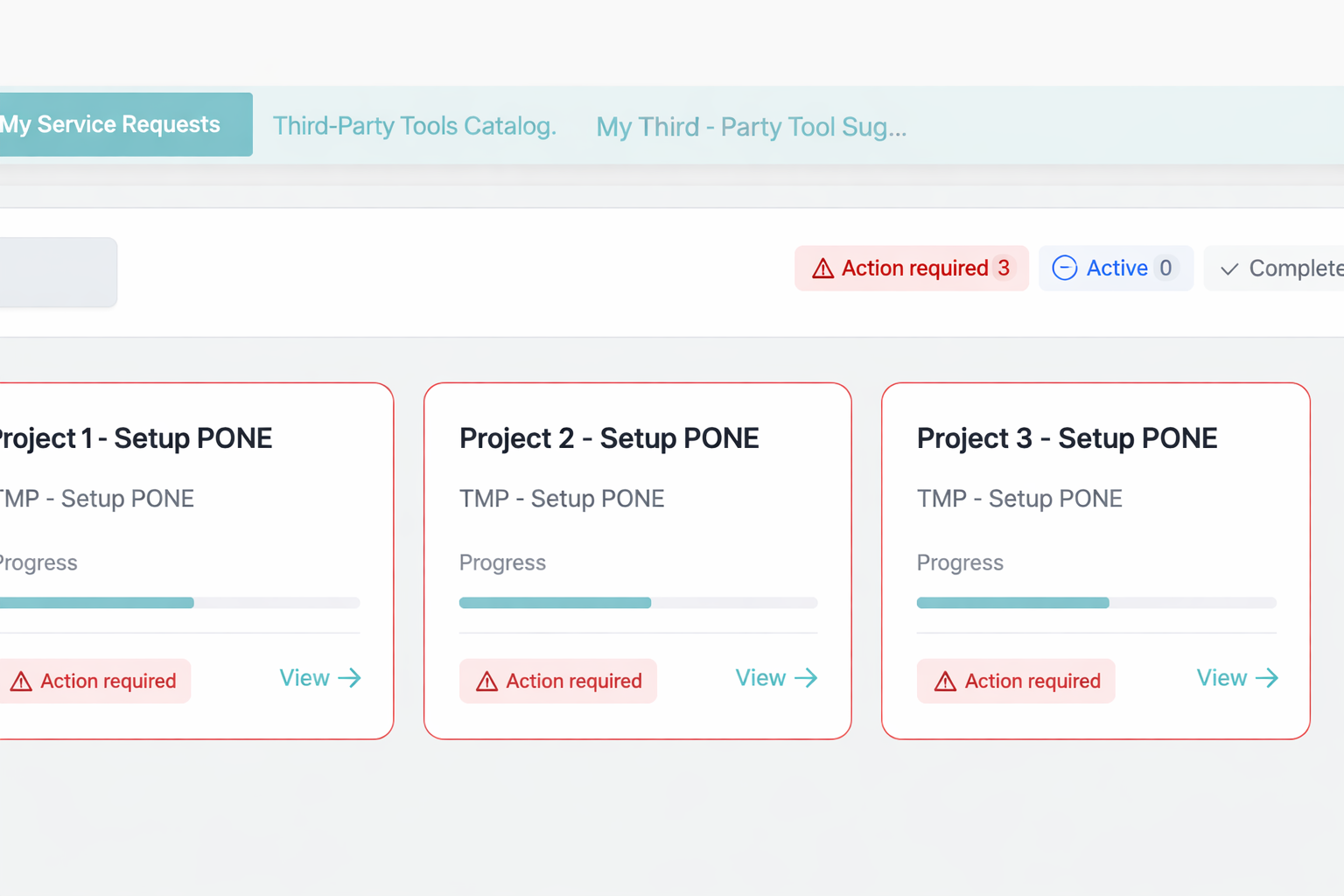
From the Project overview page, you can access the Timeline of your project.
To do so:
- Open your project using the Follow button
- Click on Timeline at the top of the screen
The Timeline gives you a clear, high-level view of your project’s progress.
2. Understand the Timeline
The Timeline represents the main phases of the project and helps you see:
- where the installation currently stands,
- which steps are completed,
- which steps are in progress.
Each step is displayed with a specific color, making it easy to understand who is responsible for the next action.

3. Understand the color codes
The Timeline uses a simple color code:
- Blue → actions in progress or to be handled by Probance
- Red → actions waiting for you
- Grey → global or summary view
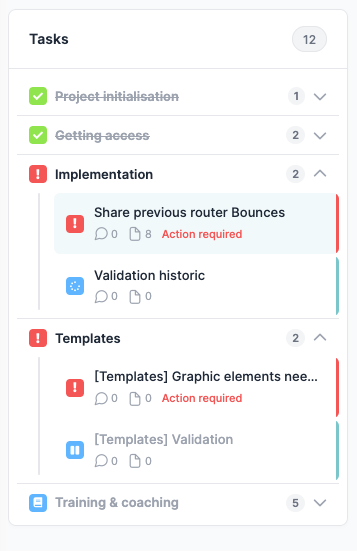
👉 This allows you to immediately see whether an action is required from you or if the project is progressing on the Probance side.
4. Identify what is blocking a project
A project can be blocked for two main reasons.
Client-side blocking
If a step appears in red, it means that one or more tasks are Waiting for client.
👉 In this case:
- an action is required from you,
- the project cannot move forward until the task is completed.
Probance-side blocking
If a step appears in blue, it means the Probance teams are currently working on the project.
👉 No action is required from you at this stage.
5. How to unblock your project quickly
To allow the project to move forward:
- check tasks with the status Waiting for client,
- complete the requested information,
- click Save.
If you have any doubts or questions:
- use the discussion area directly within the task,
- communicate with the Probance teams without using email.
6. Best practices to keep your project moving
To avoid delays and speed up the installation:
- check the Timeline regularly,
- prioritize tasks with the status Waiting for client,
- keep all communications centralized in Portail Probance.
✅ Key points to remember
- The Timeline gives you a global view of your project’s progress
- Colors clearly indicate who needs to act
- Tasks with the status Waiting for client require an action from you
- Completing a task helps unblock the project immediately